June 15, 2015
Below is a list of some popular Google Docs add-ons for teachers and educators. These extensions are geared towards enhancing your Google Docs productivity by enabling you to perform a wide range of functionalities that Docs alone would not be able to afford. Some of the things you can do with these add-ons include: create bibliographies and automatically format citations in different citation styles, integrate various accents into your docs, create and insert mind maps into your documents, add digital signatures to your docs, create math graphs, generate tag clouds, and draw diagrams.
1- EasyBib Bibliography Creator
'EasyBib allows you to easily create a bibliography for your research paper. Automatically cite books, journal articles, and websites just by entering in the titles or URLs. Format citations in MLA, APA, Chicago, Harvard, and over 7K other styles.'
2- Easy Accent
'This Add-on allows users to easily insert accents for different languages directly from a sidebar in their Google Doc.When you click on an accent it will insert the accent,move the cursor in front, then allow you to continue typing without re-clicking.'
3- MindMeister
'The MindMeister add-on for Google Docs turns any bullet-point list into a mind map, and automatically inserts it into your document. The first point of your list becomes the root topic of the mind map, while the rest of the first-level points are turned into first-level topics. Second-level points are turned into the equivalent second-level topics and so on.'
4- HelloSign
'HelloSign makes it easy to sign your Google Doc with a legally binding, business-caliber signature.Need to get your document signed? HelloSign makes requesting a signature from others easy too!'
5- Tag Cloud Generator
'Tag Cloud Generator creates a tag cloud in the side bar from any Google Docs document that contains 50 words or more. Use this add-on to quickly assess what your emerging theme is, how to best categorize your document, or if it is someone's else's document - find out the theme of the document without reading it. '
6- Lucidchart Diagrams
'Lucidchart is an HTML5-based visual collaboration tool that makes drawing diagrams fast and easy. Work together with an unlimited number of others to create and edit diagrams in real time, with changes merged and synced instantaneously -- great for team collaboration and working with clients. '
7- g(Math)
'Create graphs and complex math directly from the sidebar in your Google Doc. You can now use Speech to Math in Chrome to talk directly to g(Math) to create the expressions or use Handwriting recognition for expression entry!'
Follow us on : Twitter, Facebook , Google plus, Pinterest .
Mostrando entradas con la etiqueta google docs. Mostrar todas las entradas
lunes, 15 de junio de 2015
viernes, 22 de mayo de 2015
Two New Updates to Docs and Slides Apps
May 22, 2015
Google has recently announced a few updates to its Docs and Slides apps for Android and iOS. These updates are mainly concerned with the addition and customization of images in Slides and Docs. Users now can easily integrate pictures into presentations or documents right from their mobile device or tablet. They can either take a photo using the camera on their devices or use the pictures already saved in their camera roll.
Also, “When you’re creating a presentation away from your desk, double tap any image in Slides to enter crop mode. From there, trim the sides of your image, or tap the mask icon to crop it into a specific shape.”
The updates released today are also available for offline access with no internet connection. To try out these new tricks, you will need to update your Docs and Slides app. Here are the links for Google Play and Apple Store (Docs, Slides) .
Follow us on : Twitter, Facebook , Google plus, Pinterest .
Google has recently announced a few updates to its Docs and Slides apps for Android and iOS. These updates are mainly concerned with the addition and customization of images in Slides and Docs. Users now can easily integrate pictures into presentations or documents right from their mobile device or tablet. They can either take a photo using the camera on their devices or use the pictures already saved in their camera roll.
Also, “When you’re creating a presentation away from your desk, double tap any image in Slides to enter crop mode. From there, trim the sides of your image, or tap the mask icon to crop it into a specific shape.”
The updates released today are also available for offline access with no internet connection. To try out these new tricks, you will need to update your Docs and Slides app. Here are the links for Google Play and Apple Store (Docs, Slides) .
Follow us on : Twitter, Facebook , Google plus, Pinterest .
domingo, 10 de mayo de 2015
This is How to Use Google Drive App for Android to Scan Docs into Searchable PDFs
May 10, 2015
Google’s advanced OCR (Optical Character Recognition) technology allows Drive users to easily convert text in images and PDF documents into searchable documents with the ability to easily edit and save editions. Check out this post to learn more about how you can use Google Docs to convert images and PDFs to editable text.
Google Drive app for Android has this wonderful integrated functionality that allows users to use the camera on their devices to scan any type of document (e.g. receipts, letters, billing statements…etc) then save it in the form of a searchable PDF file. The process is pretty simple and this is how to do it as explained in Drive help:
Google’s advanced OCR (Optical Character Recognition) technology allows Drive users to easily convert text in images and PDF documents into searchable documents with the ability to easily edit and save editions. Check out this post to learn more about how you can use Google Docs to convert images and PDFs to editable text.
- Open the Drive app.
- Touch the red + button in the bottom right corner.
- Touch the Scan button .
- Use your phone's camera to take a picture of the document you'd like to scan.
- A preview of the image will appear. If you're not happy with the scan, touch the refresh button to take another photo.
- If your document has several pages, you can scan another page by touching the + button.
- Once you've finished scanning pages, touch the checkmark. Your document will be saved in your Drive as a searchable PDF.
lunes, 4 de mayo de 2015
Here is How to Add Page Breaks to Your Google Docs
May 5, 2015
If you try to print a long Google doc, chances are the printed version will probably look slightly different from the actual one. For instance, a header you set to appear at the top of a given page appears at the end of the previous page when printed out or when text does not flow smoothly between pages resulting in paragraph overlap. This is usually the case because the default settings in Google Docs are not set to properly format pagination of your document. The solution is to insert page breaks in your document. Page breaks have the added benefit of making your document look professional and organized and they also improve the flow of your text.
There are two simple ways to apply page breaks to your Google Doc. The first one is by clicking on the place where you want to add a page break then click on “insert” and select “page break”:
The second way is by using a keyboard combination of “command” and “return” for Mac. Watch the video below to see this hack in action.
Image source: ibm.com
If you try to print a long Google doc, chances are the printed version will probably look slightly different from the actual one. For instance, a header you set to appear at the top of a given page appears at the end of the previous page when printed out or when text does not flow smoothly between pages resulting in paragraph overlap. This is usually the case because the default settings in Google Docs are not set to properly format pagination of your document. The solution is to insert page breaks in your document. Page breaks have the added benefit of making your document look professional and organized and they also improve the flow of your text.
There are two simple ways to apply page breaks to your Google Doc. The first one is by clicking on the place where you want to add a page break then click on “insert” and select “page break”:
The second way is by using a keyboard combination of “command” and “return” for Mac. Watch the video below to see this hack in action.
Image source: ibm.com
lunes, 27 de abril de 2015
Great Tips on How to Effectively Search Gmail and Google Drive
April 28, 2015
In this wonderful video Google engineers Liu and Merrified share some interesting tips and insights on how to effectively search your Gmail and Drive.The purpose is to enable you to tap into some hidden gems that will allow you to search for what you need in Gmail or Drive quickly and accurately.
All of the search tips Liu and Merrified talked about in this tutorial include search and Boolean operators. This document from Gmail Help features some of the most useful operators to use when conducting internal searches in your Gmail. You should definitely bookmark and keep it for reference.
Some of the tips we particularly like include:
1- has:attachment
This allows you to search for emails with an attachment example: Example: from:david has:attachment
Meaning: Messages from David that have an attachment.
2- After:/ Before:/ older:/ newer:
You can use these words to filter your search to include only messages that were sent or received during a particular period of time.
Example: after:2004/04/16 before:2004/04/18
Meaning: Messages sent between April 16, 2004 and April 18, 2004.*
3- Use of Boolean operator OR
“ For example, to look for messages from username@gmail.com and messages that contain the subject line 'Meeting reminder', you can enter 'username@gmail.com OR meeting reminder' in your Gmail search box.”
Watch the video below to learn more about how to effectively search your Gmail and Drive. Enjoy
Follow us on : Twitter, Facebook , Google plus, Pinterest .
In this wonderful video Google engineers Liu and Merrified share some interesting tips and insights on how to effectively search your Gmail and Drive.The purpose is to enable you to tap into some hidden gems that will allow you to search for what you need in Gmail or Drive quickly and accurately.
All of the search tips Liu and Merrified talked about in this tutorial include search and Boolean operators. This document from Gmail Help features some of the most useful operators to use when conducting internal searches in your Gmail. You should definitely bookmark and keep it for reference.
Some of the tips we particularly like include:
1- has:attachment
This allows you to search for emails with an attachment example: Example: from:david has:attachment
Meaning: Messages from David that have an attachment.
2- After:/ Before:/ older:/ newer:
You can use these words to filter your search to include only messages that were sent or received during a particular period of time.
Example: after:2004/04/16 before:2004/04/18
Meaning: Messages sent between April 16, 2004 and April 18, 2004.*
3- Use of Boolean operator OR
“ For example, to look for messages from username@gmail.com and messages that contain the subject line 'Meeting reminder', you can enter 'username@gmail.com OR meeting reminder' in your Gmail search box.”
Watch the video below to learn more about how to effectively search your Gmail and Drive. Enjoy
Follow us on : Twitter, Facebook , Google plus, Pinterest .
domingo, 26 de abril de 2015
Two Simple Ways to Create A Table of Content in Google Docs
April, 2015
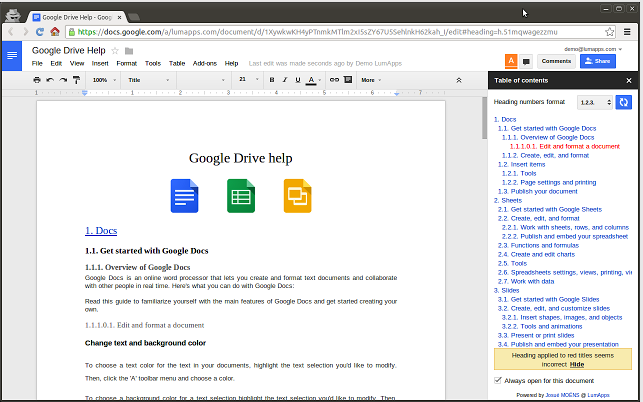
There are actually two ways to add a table of contents to a document in Google Docs. Both of these ways require that you create headings and subheadings in your document. The first way is through using Google Docs' built-in feature which can be accessed by clicking on "insert" button then select "table of contents". Watch this excellent tutorial from Shannon Hermandez to learn more about how to create a table of content using Google Docs built-in functionality.
The second way is through using a third party add-on called 'Table of Contents'. This is a powerful Google Docs add-on that allows you to easily create a table of content in the sidebar. The great thing about this feature besides providing readers with a quick overview of the main points covered in your document is that it makes it easier for them to instantly jump to any section in the document by simply clicking on any of the headings listed in the table of contents.
More importantly, the table of contents is automatically created out of the headings in your document. And when you add another heading you simply hit the refresh button and it will be automatically added to the table of contents. However, be forewarned that in some cases where you have several headings or your document is really very long, the functionality of table of contents can be very slow.
There are actually two ways to add a table of contents to a document in Google Docs. Both of these ways require that you create headings and subheadings in your document. The first way is through using Google Docs' built-in feature which can be accessed by clicking on "insert" button then select "table of contents". Watch this excellent tutorial from Shannon Hermandez to learn more about how to create a table of content using Google Docs built-in functionality.
The second way is through using a third party add-on called 'Table of Contents'. This is a powerful Google Docs add-on that allows you to easily create a table of content in the sidebar. The great thing about this feature besides providing readers with a quick overview of the main points covered in your document is that it makes it easier for them to instantly jump to any section in the document by simply clicking on any of the headings listed in the table of contents.
More importantly, the table of contents is automatically created out of the headings in your document. And when you add another heading you simply hit the refresh button and it will be automatically added to the table of contents. However, be forewarned that in some cases where you have several headings or your document is really very long, the functionality of table of contents can be very slow.
miércoles, 15 de abril de 2015
Remotely Control Your Google Drive Presentations Using Your Smartphone
April, 2015
Presentation Remote is a Chrome app that allows you to use your smartphone to remotely control your presentations on Google Drive, Prezi, Scribd, Slideshare and Dropbox. Of course, to be able to do that you will have to have their app called De Modo installed on your phone. The app is free and is available for both iOS and Android. Here is how it works:
On your computer:
Add the Presentation Remote app from the Chrome Web Store to the browser or visit presentationdocs.com on Chrome or Safari.
Click the "Connect" button in the left menu and a QR code will show up.
On your mobile device:
Install "de Mobo" on Android 2.3+ or iPhone 4+.
Click "Create Connection" on your mobile device to scan that QR code.
Make sure the mobile device and computer are using the same wifi network for reliable performance.
Watch the video below to see Presentation Remote in action
Presentation Remote is a Chrome app that allows you to use your smartphone to remotely control your presentations on Google Drive, Prezi, Scribd, Slideshare and Dropbox. Of course, to be able to do that you will have to have their app called De Modo installed on your phone. The app is free and is available for both iOS and Android. Here is how it works:
On your computer:
Add the Presentation Remote app from the Chrome Web Store to the browser or visit presentationdocs.com on Chrome or Safari.
Click the "Connect" button in the left menu and a QR code will show up.
On your mobile device:
Install "de Mobo" on Android 2.3+ or iPhone 4+.
Click "Create Connection" on your mobile device to scan that QR code.
Make sure the mobile device and computer are using the same wifi network for reliable performance.
Watch the video below to see Presentation Remote in action
sábado, 11 de abril de 2015
4 Google Drive Tools Teachers Should Have
April 12, 2015
In today's post we are sharing with you four important Chrome apps to enhance your productivity on Google Drive. We have already reviewed each of these apps in separate posts in the past and we thought it would be practical to aggregate them in a single page for anyone to instantly access and use. Some of the things you will be able to do with these apps include: the ability to save web content and screenshots right into your Drive, a quicker way to access and create all types of files on Drive, view and edit Microsoft files on Drive, and the ability to sync and manage all your files in the cloud directly from your Google Drive page.
1- Save to Google Drive
"This extension allow you to save web content directly to Google Drive through a browser action or context menu. You can save documents, images, and HTML5 audio and video all by right clicking and selecting 'Save to Google Drive'. You can save the currently viewed page using the 'Save to Google Drive' browser action."
2- Google Drive Quick Create
"A simple extension to make it quicker to create new Google documents, spreadsheets, presentations and drawings. Supports multiple Google accounts through the Options."
3- Office Editing for Docs, Sheets and Slides
"View and edit Microsoft Word, Excel, and PowerPoint files -- without needing Office installed on your computer. "
4- Sync Google Drive with Dropbox, Box,…
"With this browser extension you can sync, backup and integrate anything in your Dropbox, SharePoint™, Google Gmail™, Evernote, Box, OneDrive™, Egnyte™, or Basecamp account with Google Drive™. And setup can be done directly from your Google Drive™ interface."
In today's post we are sharing with you four important Chrome apps to enhance your productivity on Google Drive. We have already reviewed each of these apps in separate posts in the past and we thought it would be practical to aggregate them in a single page for anyone to instantly access and use. Some of the things you will be able to do with these apps include: the ability to save web content and screenshots right into your Drive, a quicker way to access and create all types of files on Drive, view and edit Microsoft files on Drive, and the ability to sync and manage all your files in the cloud directly from your Google Drive page.
1- Save to Google Drive
"This extension allow you to save web content directly to Google Drive through a browser action or context menu. You can save documents, images, and HTML5 audio and video all by right clicking and selecting 'Save to Google Drive'. You can save the currently viewed page using the 'Save to Google Drive' browser action."
2- Google Drive Quick Create
"A simple extension to make it quicker to create new Google documents, spreadsheets, presentations and drawings. Supports multiple Google accounts through the Options."
3- Office Editing for Docs, Sheets and Slides
"View and edit Microsoft Word, Excel, and PowerPoint files -- without needing Office installed on your computer. "
4- Sync Google Drive with Dropbox, Box,…
"With this browser extension you can sync, backup and integrate anything in your Dropbox, SharePoint™, Google Gmail™, Evernote, Box, OneDrive™, Egnyte™, or Basecamp account with Google Drive™. And setup can be done directly from your Google Drive™ interface."
jueves, 9 de abril de 2015
3 Google Drive Tools for Creating Professional-looking Diagrams and Flowcharts
April 9, 2015
We received a couple of requests from teachers asking for Google Drive add-ons to use with Google Docs to create and integrate diagrams and flowcharts. The first tool that came to mind is Gliffy for we have reviewed it here a couple of times but then we did a further search in Google Drive app store and picked two more to add to this list. For those of you looking for apps to create concept and mind maps in Google Drive, this selection is a good place to start with.
1-Gliffy
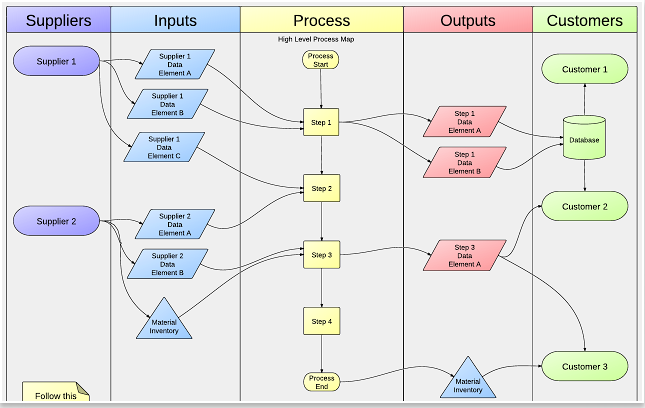
Gliffy is a very good diagram editor that is integrated with Google Drive allowing users to easily and instantly create and share beautiful diagrams and flowcharts. Gliffy provides a wide variety of features that include:
Draw.io is another powerful diagramming add-on to use on Google Docs. Its editor has all kinds of shapes and materials to help you create both simple and advanced diagrams. Draw.io is completely free and does not require any registration.
3- Web Sequence Diagrams
“Sequence Diagrams let you describe how different parts your system communicate with each other. But drawing sequence diagrams can take hours with traditional tools. Your clients and colleagues will be impressed if you can make large-scale changes as easily as copying and pasting text, instead of spending your time moving lines around with a mouse. With this add-on, you write your sequence interactions directly into your documentation. With a click of the button, they are converted into professionally formatted UML sequence diagrams in a variety of styles.”
We received a couple of requests from teachers asking for Google Drive add-ons to use with Google Docs to create and integrate diagrams and flowcharts. The first tool that came to mind is Gliffy for we have reviewed it here a couple of times but then we did a further search in Google Drive app store and picked two more to add to this list. For those of you looking for apps to create concept and mind maps in Google Drive, this selection is a good place to start with.
1-Gliffy
Gliffy is a very good diagram editor that is integrated with Google Drive allowing users to easily and instantly create and share beautiful diagrams and flowcharts. Gliffy provides a wide variety of features that include:
- Easy-to-use diagram editor helps you communicate your ideas quickly
- Makes any idea look more professional and polished
- Extensive shape library with hundreds of industry-standard shapes and connectors
- Snap-to-grid, drawing guides, shape alignment and distribution tools
- Also great for drawing a basic diagram, flow chart, UI mockup, site map, network map, business process model, org chart, floor plan, venn diagram, SWOT analysis, and other technical diagrams.
Draw.io is another powerful diagramming add-on to use on Google Docs. Its editor has all kinds of shapes and materials to help you create both simple and advanced diagrams. Draw.io is completely free and does not require any registration.
3- Web Sequence Diagrams
“Sequence Diagrams let you describe how different parts your system communicate with each other. But drawing sequence diagrams can take hours with traditional tools. Your clients and colleagues will be impressed if you can make large-scale changes as easily as copying and pasting text, instead of spending your time moving lines around with a mouse. With this add-on, you write your sequence interactions directly into your documentation. With a click of the button, they are converted into professionally formatted UML sequence diagrams in a variety of styles.”
miércoles, 8 de abril de 2015
Two Useful Google Drive Tools for Teachers
April 9, 2015
Below are two excellent Google Drive add-ons to use with your Google Docs. The first one in the list is an application that enables users to generate tag clouds from documents that have over 50 words. The second add-on provides users with a super easy way to integrate images from the popular OpenClipart right into a Google doc. The app's gallery has over 50.000 pictures to choose from.
1- Tag Cloud Generator
"Tag Cloud Generator creates a tag cloud in the side bar from any Google Docs document that contains more than 50 words. Use this add-on to quickly assess what your emerging theme is, how to best categorize your document, or if it is someone's else's document - find out the theme of the document without reading it. Stop words are automatically removed."
2- Open Clip Art
"Openclipart provides many of the best clipart images available and now you can search and insert them right into your Google Document. With more than 50,000 images in the library you will be able to find that perfect image to liven up your document or make a favorable impression to that new client."
Below are two excellent Google Drive add-ons to use with your Google Docs. The first one in the list is an application that enables users to generate tag clouds from documents that have over 50 words. The second add-on provides users with a super easy way to integrate images from the popular OpenClipart right into a Google doc. The app's gallery has over 50.000 pictures to choose from.
1- Tag Cloud Generator
"Tag Cloud Generator creates a tag cloud in the side bar from any Google Docs document that contains more than 50 words. Use this add-on to quickly assess what your emerging theme is, how to best categorize your document, or if it is someone's else's document - find out the theme of the document without reading it. Stop words are automatically removed."
2- Open Clip Art
"Openclipart provides many of the best clipart images available and now you can search and insert them right into your Google Document. With more than 50,000 images in the library you will be able to find that perfect image to liven up your document or make a favorable impression to that new client."
miércoles, 25 de marzo de 2015
Here Is A Good Way to Grade and Annotate Google Drive Files
March 25, 2015
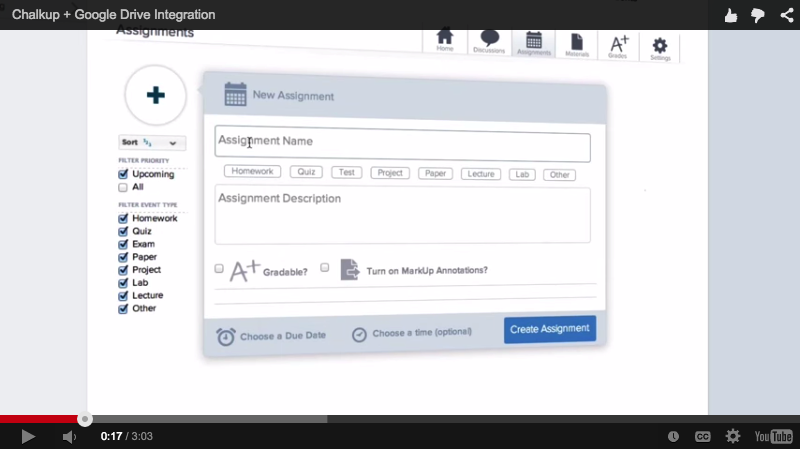
Looking for a good tool to help you annotate files on Google Drive? Challkup is the answer. Chalkup is a great web tool that allows teachers to create classes and share different study materials on a message board that students can access in real-time. Chalkup lets you post discussion prompts, add comments to discussions, distribute announcements and assignments and view files.
Chalkup also provides a very good functionality called MarkUp annotator that allows teachers to easily annotate files and documents they receive from their students. MarkUp is ideal for grading students assignments. It lets you comment, draw and highlight right on the file and students can always submit additional versions of the file. Chalkup has recently integrated rubrics for teachers to use when assessing students assignments and projects.Watch the video below to learn how to use rubrics for grading:
Looking for a good tool to help you annotate files on Google Drive? Challkup is the answer. Chalkup is a great web tool that allows teachers to create classes and share different study materials on a message board that students can access in real-time. Chalkup lets you post discussion prompts, add comments to discussions, distribute announcements and assignments and view files.
Chalkup also provides a very good functionality called MarkUp annotator that allows teachers to easily annotate files and documents they receive from their students. MarkUp is ideal for grading students assignments. It lets you comment, draw and highlight right on the file and students can always submit additional versions of the file. Chalkup has recently integrated rubrics for teachers to use when assessing students assignments and projects.Watch the video below to learn how to use rubrics for grading:
domingo, 22 de marzo de 2015
A Quick Way for Students to Hand in Their Google Drive Assignments and Papers
March 22, 2015
There are several ways students can use to turn in their assignments through Google Drive. The most popular of them all is through a shared folder. As a teacher you can create a shared folder on your Drive and invite students to join and submit their papers. You can learn more about Google Drive shared folders from this link.
However, if you are looking for a simpler and quicker way to enable students to turn in their assignments, Chalkup has the answer. For those of you not familiar with this tool, Chalkup is a powerful application integrated with Google Drive and which allows teachers and students to do a variety of things with their Drive including, annotating docs, sharing Drive files, grading papers, and many more. Chalkup also offers this handy feature that allows students to instantly turn in their assignments and papers they crated on Google Drive.To do so, they simply need to sign in to their Chalkup, and under "turn in your assignment" they click on "Upload from Google Drive" as is shown in the image below:
Watch this video to learn more about how Chalkup works.

There are several ways students can use to turn in their assignments through Google Drive. The most popular of them all is through a shared folder. As a teacher you can create a shared folder on your Drive and invite students to join and submit their papers. You can learn more about Google Drive shared folders from this link.
However, if you are looking for a simpler and quicker way to enable students to turn in their assignments, Chalkup has the answer. For those of you not familiar with this tool, Chalkup is a powerful application integrated with Google Drive and which allows teachers and students to do a variety of things with their Drive including, annotating docs, sharing Drive files, grading papers, and many more. Chalkup also offers this handy feature that allows students to instantly turn in their assignments and papers they crated on Google Drive.To do so, they simply need to sign in to their Chalkup, and under "turn in your assignment" they click on "Upload from Google Drive" as is shown in the image below:
Watch this video to learn more about how Chalkup works.

miércoles, 18 de marzo de 2015
The Best 4 Google Drive Tools for Creating Mind Maps and Diagrams
March 18, 2015
Looking for some good mind mapping and brainstorming tools? Below are 4 of the best tools we would recommend for you. All of these tools are integrated with Google Drive which means that you can easily create, edit and share your mind maps and diagrams right from your Drive.Also, these tools support real-time collaboration, a feature ideal for students group work. Different participants can work on the same mind map with the ability to see each others edits as they happen.
1- MindMeister
This is by far the most popular of them all. MindMeister is a very good tool students can use to create mindmaps and brainstorm complex topics. Mind maps can include a wide variety of multimedia including: text, images, icons, links, and attachments. It also supports offline editing and syncing. Mind maps can be exported to Word, PowerPoint, PDF, and in the form of an image.
2- Lucidchart
“Lucidchart is a visual collaboration tool that makes drawing diagrams fast and easy. Work together with an unlimited number of others to create and edit diagrams in real time, with changes merged and synced instantaneously -- great for team collaboration and working with clients. Because it's web-based, Lucidchart is the perfect alternative to Microsoft Visio for Mac, Windows, Linux and more.”
3- Mindomo
This is another excellent tool for creating mind maps. Students can use it to visually outline complex concepts, tasks, ideas, and other related information in a structured form. Mindomo also allows you to embed videos and files in your maps and provides you different layouts to work with ( mind map, concept map, org chart, tree org chart) and many more.
4- MindMup
MindMup is a free online mind mapping tool that works seamlessly with Google Drive. Like the previous tools, MindMup supports real-time collaborative mind mapping and cloud storage. MindMup is available everywhere: you can access your maps with a browser or a mobile device, and cloud storage ensures you have access to your data where ever you are, and the application works nicely with both desktop, tablet and mobile browsers.
Looking for some good mind mapping and brainstorming tools? Below are 4 of the best tools we would recommend for you. All of these tools are integrated with Google Drive which means that you can easily create, edit and share your mind maps and diagrams right from your Drive.Also, these tools support real-time collaboration, a feature ideal for students group work. Different participants can work on the same mind map with the ability to see each others edits as they happen.
1- MindMeister
This is by far the most popular of them all. MindMeister is a very good tool students can use to create mindmaps and brainstorm complex topics. Mind maps can include a wide variety of multimedia including: text, images, icons, links, and attachments. It also supports offline editing and syncing. Mind maps can be exported to Word, PowerPoint, PDF, and in the form of an image.
2- Lucidchart
“Lucidchart is a visual collaboration tool that makes drawing diagrams fast and easy. Work together with an unlimited number of others to create and edit diagrams in real time, with changes merged and synced instantaneously -- great for team collaboration and working with clients. Because it's web-based, Lucidchart is the perfect alternative to Microsoft Visio for Mac, Windows, Linux and more.”
3- Mindomo
This is another excellent tool for creating mind maps. Students can use it to visually outline complex concepts, tasks, ideas, and other related information in a structured form. Mindomo also allows you to embed videos and files in your maps and provides you different layouts to work with ( mind map, concept map, org chart, tree org chart) and many more.
4- MindMup
MindMup is a free online mind mapping tool that works seamlessly with Google Drive. Like the previous tools, MindMup supports real-time collaborative mind mapping and cloud storage. MindMup is available everywhere: you can access your maps with a browser or a mobile device, and cloud storage ensures you have access to your data where ever you are, and the application works nicely with both desktop, tablet and mobile browsers.
lunes, 2 de marzo de 2015
A Wonderful Google Drive Tool to Insert Different Accents in Your Docs
March 3, 2015
Easy Accents is definitely a must have Google Docs add-on for students, teachers, educators and anyone else who write using different language formats. Easy Accents enables you to easily insert accents for different languages directly into your Google Doc. The add-on supports a wide variety of accents that include: Esperanto Finnish, French, German, Hungarian, Icelandic, Māori, Português, Sámi, Spanish to mention a few. And only recently Easy Accents added a new feature that lets you insert capital accents in your docs.
To start using Easy Accent, you need to install it from this page. After granting it permission to access your Google Docs, you simply click on “Add-ons” and select “Easy Accents” and then click the language you want to use. Accents of that language will be displayed on the sidebar of your Google doc from which you can directly insert them into your paper. Watch the video below, created by Greg Lawrence, to see this add-on in action.
Easy Accents is definitely a must have Google Docs add-on for students, teachers, educators and anyone else who write using different language formats. Easy Accents enables you to easily insert accents for different languages directly into your Google Doc. The add-on supports a wide variety of accents that include: Esperanto Finnish, French, German, Hungarian, Icelandic, Māori, Português, Sámi, Spanish to mention a few. And only recently Easy Accents added a new feature that lets you insert capital accents in your docs.
To start using Easy Accent, you need to install it from this page. After granting it permission to access your Google Docs, you simply click on “Add-ons” and select “Easy Accents” and then click the language you want to use. Accents of that language will be displayed on the sidebar of your Google doc from which you can directly insert them into your paper. Watch the video below, created by Greg Lawrence, to see this add-on in action.
domingo, 1 de marzo de 2015
Professionally Designed Templates to Use in Google Docs and Sheets
March 2, 2015
Template Gallery is a useful Google Doc add-on for teachers and students. It provides you with a variety of professionally designed templates for your documents and spreadsheets. Most of these templates are not available in Google Drive’s public gallery. Examples of the templates provided by this add-on include: calendars, schedules, invoices, time sheets, budgeting tools, letters, resumes, financial calculators, and more.
To use Template Gallery, you need to install the extension from this page. Once installed you can then browse through the gallery.”When you find a template you want to use, click on the Copy to Google Drive button and the add-on will save a copy of the template into the root folder of your Google Drive.”
Template Gallery is a useful Google Doc add-on for teachers and students. It provides you with a variety of professionally designed templates for your documents and spreadsheets. Most of these templates are not available in Google Drive’s public gallery. Examples of the templates provided by this add-on include: calendars, schedules, invoices, time sheets, budgeting tools, letters, resumes, financial calculators, and more.
To use Template Gallery, you need to install the extension from this page. Once installed you can then browse through the gallery.”When you find a template you want to use, click on the Copy to Google Drive button and the add-on will save a copy of the template into the root folder of your Google Drive.”
miércoles, 25 de febrero de 2015
A Very Good Tool to Create Charts from Spreadsheets and Insert Them into Google docs
February 25, 2015
The Charts Builder is a Google Docs add-on that we have discovered while we were curating google Forms Tools for Teachers. Charts Builder allows you to build a chart from the data you have in your Google spreadsheet and then insert it directly into your document.
The Charts Builder allows you to select the type of chart and a spreadsheet. Everything is integrated and your chart will be added to the line you select in only 5 simple steps:
1-Open Charts from the add-ons menu
2- Select a chart type. (The Chart Builder will explain how to organize your data)
3- Click the load data button and choose your spreadsheet
4- Now you can drag to select your data
5- That’s it; just click the Insert button.
Follow us on : Twitter, Facebook , Google plus, Pinterest .
The Charts Builder is a Google Docs add-on that we have discovered while we were curating google Forms Tools for Teachers. Charts Builder allows you to build a chart from the data you have in your Google spreadsheet and then insert it directly into your document.
The Charts Builder allows you to select the type of chart and a spreadsheet. Everything is integrated and your chart will be added to the line you select in only 5 simple steps:
1-Open Charts from the add-ons menu
2- Select a chart type. (The Chart Builder will explain how to organize your data)
3- Click the load data button and choose your spreadsheet
4- Now you can drag to select your data
5- That’s it; just click the Insert button.
Follow us on : Twitter, Facebook , Google plus, Pinterest .
martes, 24 de febrero de 2015
Two New Google Drive Updates You Should Know About
February 24, 2015
Here is a very interesting set of updates added today to Google Docs. These updates are especially helpful for student researchers and teachers who prefer to use Google Docs to write long research papers and theses. Google Docs now allows you to customize how the headers and footers appear on the first page of your documents.With this update, you will be able to have a specific header and footer for the first page of your documents. "After inserting a header or footer in your document you’ll see a new checkbox--just tick it and you’ll be able to set a different header and footer on the first page."
Another important update is the addition of a menu for inserting page numbers which lets you customize how and where you start your page numbers.
Courtesy of Google for Education
Here is a very interesting set of updates added today to Google Docs. These updates are especially helpful for student researchers and teachers who prefer to use Google Docs to write long research papers and theses. Google Docs now allows you to customize how the headers and footers appear on the first page of your documents.With this update, you will be able to have a specific header and footer for the first page of your documents. "After inserting a header or footer in your document you’ll see a new checkbox--just tick it and you’ll be able to set a different header and footer on the first page."
Another important update is the addition of a menu for inserting page numbers which lets you customize how and where you start your page numbers.
Courtesy of Google for Education
domingo, 22 de febrero de 2015
An Easy and Quick Way to Grade Quizzes on Google Drive Using Super Quiz Tool
February 22, 2015
Super Quiz is an excellent Google Sheets add-on that allows teachers to add some amazing functionalities to the quizzes they create through Google Forms. For instance, when you create a quiz, you only need to complete it once with an answer key and all future submissions will be automatically graded according to the answers you provided. Another important feature of Super Quiz is that it enables you to get a break down of class understanding and a list of incorrect students' answers for each question in case you want to stage an intervention.
Also, “By filling out a few cells of information, you can also generate personalized differentiated written feedback emailed to students as soon as they submit a response. No need to monitor and ‘re-grade’ - just set-up and go!You can split your quiz in up to 4 different topics, and provide specific feedback on each. If you don’t want to email students, you can choose to print feedback on a 2x2 array, too.”
Watch the video below to learn more about Super Quiz
Super Quiz is an excellent Google Sheets add-on that allows teachers to add some amazing functionalities to the quizzes they create through Google Forms. For instance, when you create a quiz, you only need to complete it once with an answer key and all future submissions will be automatically graded according to the answers you provided. Another important feature of Super Quiz is that it enables you to get a break down of class understanding and a list of incorrect students' answers for each question in case you want to stage an intervention.
Also, “By filling out a few cells of information, you can also generate personalized differentiated written feedback emailed to students as soon as they submit a response. No need to monitor and ‘re-grade’ - just set-up and go!You can split your quiz in up to 4 different topics, and provide specific feedback on each. If you don’t want to email students, you can choose to print feedback on a 2x2 array, too.”
Watch the video below to learn more about Super Quiz
sábado, 21 de febrero de 2015
A Very Good Google Doc App for Helping Students with Their Learning
February 21, 2015
Texthelp Study Skills is a very good Google Doc add-on. Students can use it to help them with their studies. It allows them to select, highlight, and group content for review and learning. The process is very simple: open a Google Doc, highlight the key areas in the text you are interested in and click on “Collect Highlights” to extract and place it in a new document (by color or location) for students or others to review.
Teachers can use Texthelp Study Skills for a variety of purposes including: helping students identify and group key facts together, assisting students with their vocabulary learning by indicating new words to learn. It can also be used for collecting data and materials for a research project.
Texthelp Study Skills is free for 30 days after which you can continue to use one color highlighter and can collect and clear highlights. To keep using all four color highlighters, you can purchase a subscription to Read&Write for GoogleTM, a comprehensive set of reading, writing, and studying support tools for Google Docs, Web, PDFs, and ePubs. Read&Write for Google is available in the chrome store.
Texthelp Study Skills is a very good Google Doc add-on. Students can use it to help them with their studies. It allows them to select, highlight, and group content for review and learning. The process is very simple: open a Google Doc, highlight the key areas in the text you are interested in and click on “Collect Highlights” to extract and place it in a new document (by color or location) for students or others to review.
Teachers can use Texthelp Study Skills for a variety of purposes including: helping students identify and group key facts together, assisting students with their vocabulary learning by indicating new words to learn. It can also be used for collecting data and materials for a research project.
Texthelp Study Skills is free for 30 days after which you can continue to use one color highlighter and can collect and clear highlights. To keep using all four color highlighters, you can purchase a subscription to Read&Write for GoogleTM, a comprehensive set of reading, writing, and studying support tools for Google Docs, Web, PDFs, and ePubs. Read&Write for Google is available in the chrome store.
jueves, 19 de febrero de 2015
A Handy Google Drive Tool to Create Animated Presentations and Engaging Educational Videos
February 19, 2015
In a post we published a few months ago, we talked about WeVideo and how teachers use it to create videos and short animations in Google Drive. Today, we are introducing you to PowToon Edu, another equally powerful tool to use to create engaging videos and animated presentations.
Pontoon Edu allows you to animate difficult topics and engage your students using a wide variety of tools. You can easily drag and drop characters and props into your slides and assign it an animation, choose from different pre-designed templates and style libraries.Videos and animated presentations you create through PowToon Edu can be exported in various ways. You can share them on YouTube or Facebook, download them to your computer. You can also export them as MP4 file to embed in your classroom blog or website.
Watch the video below to learn more about PowToon Edu
In a post we published a few months ago, we talked about WeVideo and how teachers use it to create videos and short animations in Google Drive. Today, we are introducing you to PowToon Edu, another equally powerful tool to use to create engaging videos and animated presentations.
Pontoon Edu allows you to animate difficult topics and engage your students using a wide variety of tools. You can easily drag and drop characters and props into your slides and assign it an animation, choose from different pre-designed templates and style libraries.Videos and animated presentations you create through PowToon Edu can be exported in various ways. You can share them on YouTube or Facebook, download them to your computer. You can also export them as MP4 file to embed in your classroom blog or website.
Watch the video below to learn more about PowToon Edu
Suscribirse a:
Entradas (Atom)