March 24, 2015
Looking for some good task management apps to use on your Chromebook? We have you covered. Below are some very good titles to start with. We have only included the most popular extensions in this category. Some of the things you can do with these apps include: creating to-do lists, adding and managing tasks, getting reminders about your due tasks, and accessing your tasks from different devices.
1- Google Tasks
Google Tasks is a handy app that you can use on your Chromebook to easily add and manage yours tasks. To add a task from any web page you are on, you simply type “t Your new task” into Chrome Omnibar. The app also allows you to highlight text from webpages and add it to a new task.
2- Todoist for Chromebooks
This is another powerful Chrome app for creating and managing online to-do lists and tasks.Some of the features it provides include: a built-in calendar to set recurring dates, add emails as tasks directly from Gmail or Outlook, get reminders sent via email or mobile devices, and many more.
3- Wunderlist
“Wunderlist helps millions of people around the world capture their ideas, things to do and places to see. Whether you’re sharing a grocery list with a loved one, working on a project, or planning a vacation, Wunderlist makes it easy to share your lists and collaborate with everyone in your life. Wunderlist instantly syncs between your phone, tablet and computer, so you can access your lists from anywhere.”
4- Any.do
“Over 10 Million people use Any.do to organize all the things they want to do. Any.do makes it easy to remember all your personal and work tasks, anywhere you go”.
5- Remember The Milk
Remember The Milk enables you to organize and manage your tasks and to-do lists using a variety of features such as: priority, due dates, time estimates, repeating, tags, and many more. It also includes a handy search functionality that lets you easily search your tasks and notes and save your favourite searches as Smart Lists.
martes, 24 de marzo de 2015
E-learning Visually Explained for Teachers
March 24, 2015
Electronic Learning, conventionally known as e-learning, is a digitally mediated type of learning. The standard way of lesson delivery in e-learning was and mostly still is computer and hence the traditional definition of e-Learning as computer mediated learning. However, now with the huge advancement in web technologies and the emergence of several other devices that have more or less the same computational functionalities as computers (e.g tablets, Chromebooks, hand-held devices…etc), e-learning now can be facilitated through different devices.
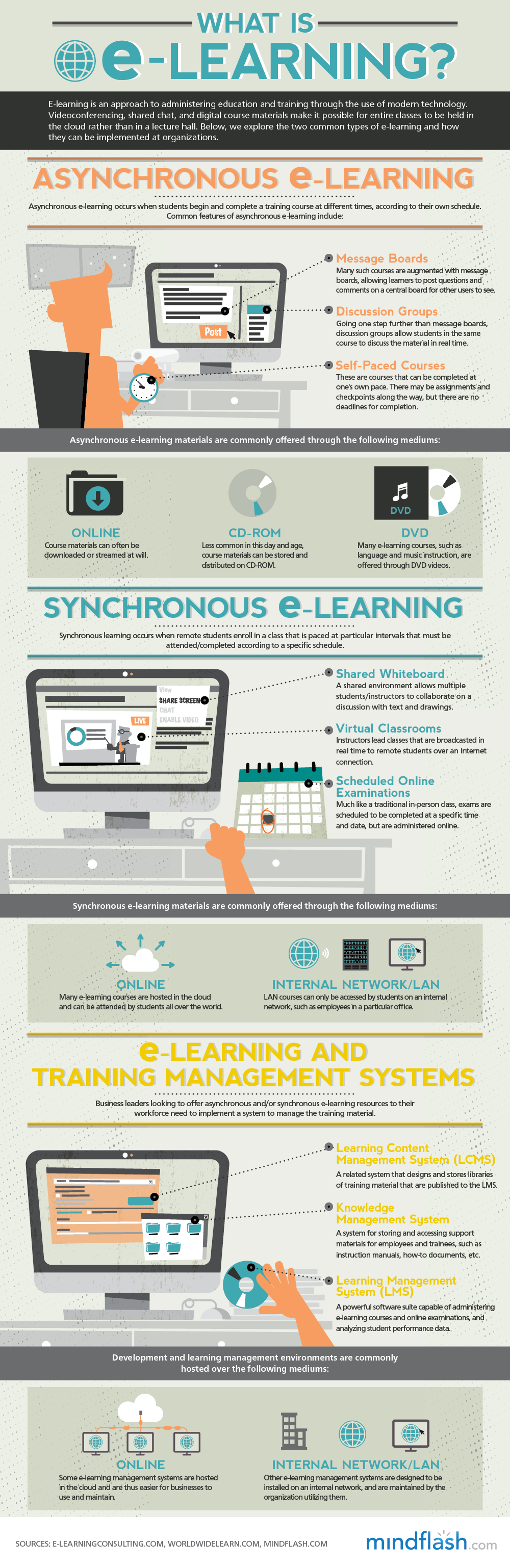
e-Learning has several advantages. Some of which , according to Virtual College, include: it is cost effective and saves time, it is available anytime/anywhere with Internet connection, and it makes it easy to track course progress.As a form of digital learning, e-learning is divided into two main categories: synchronous e-learning (involves real-time interaction between participants) and asynchronous e-learning (participants can take the course at their own time and pace). Check out the visual below to learn more about what e-learning is all about and how it can be implemented in different learning settings.
Via: Mindflash
Courtesy of eLearning Infographics
Electronic Learning, conventionally known as e-learning, is a digitally mediated type of learning. The standard way of lesson delivery in e-learning was and mostly still is computer and hence the traditional definition of e-Learning as computer mediated learning. However, now with the huge advancement in web technologies and the emergence of several other devices that have more or less the same computational functionalities as computers (e.g tablets, Chromebooks, hand-held devices…etc), e-learning now can be facilitated through different devices.
e-Learning has several advantages. Some of which , according to Virtual College, include: it is cost effective and saves time, it is available anytime/anywhere with Internet connection, and it makes it easy to track course progress.As a form of digital learning, e-learning is divided into two main categories: synchronous e-learning (involves real-time interaction between participants) and asynchronous e-learning (participants can take the course at their own time and pace). Check out the visual below to learn more about what e-learning is all about and how it can be implemented in different learning settings.
Via: MindflashCourtesy of eLearning Infographics
lunes, 23 de marzo de 2015
13 must Have Chrome Apps for Music Teachers
March 24, 2015
Here is a list we have curated specifically for music teachers. This list features a collection of popular Chrome apps ideal for teaching and learning about music. From apps to help you improve your music sheet reading skills to apps to assist you in your guitar and piano playing, the apps in this selection are definitely a must have for music teachers. Have a look and, as always, share with your colleagues.
1- Music Notation Training
“Notation Training is simple tool that helps you to improve your music sheet reading skills. App is designed to be as straightforward as possible and you can start practicing in less than one second. No registration is required.”
2- UJAM: Make Your Music
“If you've got a tune in your head, start your session by singing, whistling, humming, or playing an instrument to record your idea. Then, move on to produce a full track with professional backing instruments and styles. Or, start by rejamming a song template, loading a saved session, or uploading a file from your computer.”
3- AudioSauna
“Full-featured audio workstation for making music online. AudioSauna is a full-featured audio workstation with an easy-to-use and straightforward user interface. It enables using several advanced polyphonic synthesizers, samplers and live effects in real-time in the browser.”
4- Audiotool
“Audiotool is a powerful online music production studio right in your browser…Audiotool lets you create your own sounds by wiring more than fourteen different effects together with one of our three drum machines or synthesizers. There are endless possibilities.”
5- Beatlab
“Beatlab is the easiest way to create music and share it with your friends. Create music using a simple expressive interface that requires no knowledge of music theory or instruments. You can start from scratch, or remix the musical ideas of others.”
“Play the Piano with your computer keyboard! There are hundreds of songs in the list. All you have to do is type the letters from the song and you will be playing piano in no time! ”
7- Player Piano
“This virtual piano app for browser emulates a real piano keyboard and it offers lot of features. You can use different FX effects, show or hide key numbers, show or hide active key illumination, restart song, enable damper, adjust volume, and more with volume control you will benefit from cleaned noise and improved sounds.”
8- ButtonBass Player Piano
“Type out a song in the text field above the keys. Press the play button to have the piano play back the song. Adjust the time of the pause between key press by highlighting the number 300 and typing over it or by hitting the plus and minus buttons. The lower the number the faster it plays. ”
9- Color Piano
“Color Piano is an educational application that utilizes colors in teaching piano theory, creating a visual interface for learning the keyboard; learn how to play songs on the piano without learning sheet-music! ”
“An easy to use comprehensive directory of Guitar Chords.”
11- Guitarist’s Reference
“Guitar Chord Encyclopedia: This handy app includes over 3000 of the most commonly used guitar chords, as well as information on chord theory and easy-reference diagrams. Don't forget to check out Chord Quiz feature to test your skill.”
12- Guitar Scale Reference
“This app serves as a quick and easy reference for hundreds of guitar scales. If you are striving to improve your ability to play tasteful lead guitar, insane guitar solos, arpeggios or develop guitar melodies, this app is a must-have.”
13- ButtonBass Guitar
“Play this guitar with your computer keyboard! Play real songs by just typing out the letters. Just like the ButtonBeats Virtual Piano.“
Here is a list we have curated specifically for music teachers. This list features a collection of popular Chrome apps ideal for teaching and learning about music. From apps to help you improve your music sheet reading skills to apps to assist you in your guitar and piano playing, the apps in this selection are definitely a must have for music teachers. Have a look and, as always, share with your colleagues.
1- Music Notation Training
“Notation Training is simple tool that helps you to improve your music sheet reading skills. App is designed to be as straightforward as possible and you can start practicing in less than one second. No registration is required.”
2- UJAM: Make Your Music
“If you've got a tune in your head, start your session by singing, whistling, humming, or playing an instrument to record your idea. Then, move on to produce a full track with professional backing instruments and styles. Or, start by rejamming a song template, loading a saved session, or uploading a file from your computer.”
3- AudioSauna
“Full-featured audio workstation for making music online. AudioSauna is a full-featured audio workstation with an easy-to-use and straightforward user interface. It enables using several advanced polyphonic synthesizers, samplers and live effects in real-time in the browser.”
4- Audiotool
“Audiotool is a powerful online music production studio right in your browser…Audiotool lets you create your own sounds by wiring more than fourteen different effects together with one of our three drum machines or synthesizers. There are endless possibilities.”
5- Beatlab
“Beatlab is the easiest way to create music and share it with your friends. Create music using a simple expressive interface that requires no knowledge of music theory or instruments. You can start from scratch, or remix the musical ideas of others.”
Piano Apps
6- Virtual Piano Black“Play the Piano with your computer keyboard! There are hundreds of songs in the list. All you have to do is type the letters from the song and you will be playing piano in no time! ”
7- Player Piano
“This virtual piano app for browser emulates a real piano keyboard and it offers lot of features. You can use different FX effects, show or hide key numbers, show or hide active key illumination, restart song, enable damper, adjust volume, and more with volume control you will benefit from cleaned noise and improved sounds.”
8- ButtonBass Player Piano
“Type out a song in the text field above the keys. Press the play button to have the piano play back the song. Adjust the time of the pause between key press by highlighting the number 300 and typing over it or by hitting the plus and minus buttons. The lower the number the faster it plays. ”
9- Color Piano
“Color Piano is an educational application that utilizes colors in teaching piano theory, creating a visual interface for learning the keyboard; learn how to play songs on the piano without learning sheet-music! ”
Guitar Apps
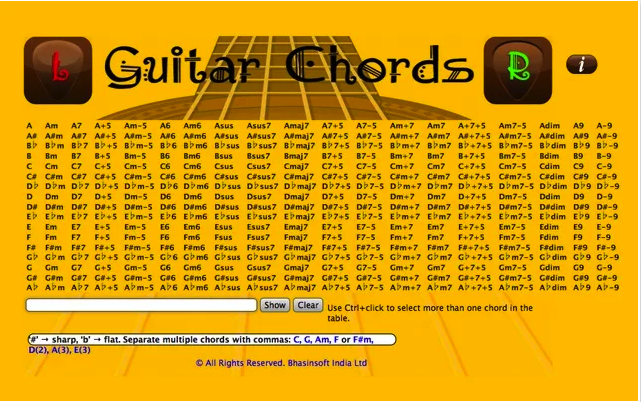
10- Guitar Chords“An easy to use comprehensive directory of Guitar Chords.”
11- Guitarist’s Reference
“Guitar Chord Encyclopedia: This handy app includes over 3000 of the most commonly used guitar chords, as well as information on chord theory and easy-reference diagrams. Don't forget to check out Chord Quiz feature to test your skill.”
12- Guitar Scale Reference
“This app serves as a quick and easy reference for hundreds of guitar scales. If you are striving to improve your ability to play tasteful lead guitar, insane guitar solos, arpeggios or develop guitar melodies, this app is a must-have.”
13- ButtonBass Guitar
“Play this guitar with your computer keyboard! Play real songs by just typing out the letters. Just like the ButtonBeats Virtual Piano.“
3 Powerful Alternatives to Evernote
March 23, 2015
This post is a response to a couple of questions we received from some teachers asking about alternative apps to Evernote. While we do recognize the huge educational potential of Evernote for teachers and students, there are also some other amazing apps out there that can do most of what Evernote does and probably in more enhanced ways. Below are examples of three apps we would recommend the most for those of you thinking of alternating Evernote. Have a look and let us know what you think of them.
1- Trello
Trello is a great organizational iPad app. You can use it to organize your to-do lists, create checklists, assign tasks to your collaborators, upload photos, PDFs and videos and many more. Everything you create on Trello is synced and saved to the cloud so you can access it anywhere you are with Internet connection.
2- Quip
This is another wonderful productivity app that enables you to do a wide variety of tasks including: taking notes, organizing task-lists, editing documents with your collaborators, embed and edit spreadsheets. You can import your documents from popular cloud storage platforms such as Dropbox, Google Drive, Box, Google Docs. It also lets you export docs to PDF and Microsoft Office and export spreadsheets to Microsoft Excel.
3- Post-it Plus
“The Post-it® Plus App takes the momentum from your collaboration sessions and keeps it rolling. Simply capture your notes, organize and share with everyone. That way your great ideas don’t stop when the meeting ends.Getting started is easy. Use the app to capture an image of the Post-it® Notes from your work session. Arrange, refine and organize the notes and ideas on your board anyway you see fit. Then share your organized board with your team and send to your favorite applications—including PowerPoint, Excel, Dropbox and plenty more.”
This post is a response to a couple of questions we received from some teachers asking about alternative apps to Evernote. While we do recognize the huge educational potential of Evernote for teachers and students, there are also some other amazing apps out there that can do most of what Evernote does and probably in more enhanced ways. Below are examples of three apps we would recommend the most for those of you thinking of alternating Evernote. Have a look and let us know what you think of them.
1- Trello
Trello is a great organizational iPad app. You can use it to organize your to-do lists, create checklists, assign tasks to your collaborators, upload photos, PDFs and videos and many more. Everything you create on Trello is synced and saved to the cloud so you can access it anywhere you are with Internet connection.
2- Quip
This is another wonderful productivity app that enables you to do a wide variety of tasks including: taking notes, organizing task-lists, editing documents with your collaborators, embed and edit spreadsheets. You can import your documents from popular cloud storage platforms such as Dropbox, Google Drive, Box, Google Docs. It also lets you export docs to PDF and Microsoft Office and export spreadsheets to Microsoft Excel.
3- Post-it Plus
“The Post-it® Plus App takes the momentum from your collaboration sessions and keeps it rolling. Simply capture your notes, organize and share with everyone. That way your great ideas don’t stop when the meeting ends.Getting started is easy. Use the app to capture an image of the Post-it® Notes from your work session. Arrange, refine and organize the notes and ideas on your board anyway you see fit. Then share your organized board with your team and send to your favorite applications—including PowerPoint, Excel, Dropbox and plenty more.”
22 Chrome Apps Every Teacher Should Know about
March 23, 2015
Over the last weekend, we spent sometime curating what we think are some of the best Chrome apps and extensions for teachers and students.Our selection is based on the reviews we have been posting here over the last couple of years and is also based on criteria such as popularity of the apps, its ratings...etc. Of course the list is no way comprehensive and there are tons of other apps to be included here but for brevity and practicality purposes we limited our list to the titles featured below. Have a look and share with your colleagues.
1- Google Classroom
“Classroom is a new tool in Google Apps for Education that helps teachers create and organize assignments quickly, provide feedback efficiently, and easily communicate with their classes. Classroom helps students organize their work in Google Drive, complete and turn it in, and communicate directly with their teachers and peers.”
2- ClassDojo
“ ClassDojo helps teachers improve behavior in their classrooms quickly and easily. It captures and generates data on behavior that teachers can share with parents and administrators. ”
3- Google Keep
“Quickly capture what's on your mind and share those thoughts with friends and family. Speak a voice memo on the go and have it automatically transcribed. Grab a photo of a poster, receipt or document and easily find it later in search.”
4- Glogster Edu
“Glogster Edu allows you to create Glogs – online multimedia posters – with text, photos, graphics, sounds, links, drawings, data attachments, and more.”
5- Sketchpad
“You can experiment with photos by painting new elements into the composition, add notes, manipulate graphics, overlay text on anything or go backwards and forwards in time infinitely through changes you make.”
6- VoiceNoteII: Speech to Text
“Typing with your voice and speech recognition. Simple and functional notepad.”
7- Lucidchart
“Lucidchart is a visual collaboration tool that makes drawing diagrams fast and easy. Work together with an unlimited number of others to create and edit diagrams in real time, with changes merged and synced instantaneously -- great for team collaboration and working with clients. ”
8- Socrative Teacher
“Engage, assess and personalize your class with Socrative!Educators can initiate formative assessments through quizzes, quick question polls, exit tickets and space races all with their Socrative Chrome app. Socrative will instantly grade, aggregate and provide visuals of results to help you identify opportunities for further instruction.”
9- Any.do
“Over 10 Million people use Any.do to organize all the things they want to do. Any.do makes it easy to remember all your personal and work tasks, anywhere you go”
10- Loup Collage
“Loupe takes hundreds of your photos and in seconds, automatically creates beautiful photo collages in any shape that you want. Turn your photos into hearts, animals, words, and even logos. You can share your collages with friends, family, put on a website, or feature it on your blog!”
11- Pixlr Express
“Pixlr Express is a fun and powerful photo editor that lets you quickly crop, resize, and fine-tune any picture, all in a completely ad-free experience. Choose from over 2 million combinations of free effects, overlays, and borders to further personalize your images. Pixlr Express makes you look like a pro, even if you’ve never edited a photo before. ”
12- Pixlr-o-matic
“Pixlr-o-matic is a fun and simple photography/darkroom tool that makes it easy to quickly add style to your photos using effects, overlays, and borders. Whether you are looking to get a retro, grunge, clean, or stylish look, Pixlr-o-matic makes it easy in just three simple steps. With over 2 million editing combinations to choose from, you will never be out of new styles that make your photos look spectacular.”
13- Dictanote
“Dictanote provides you with a advanced rich text editor with an inbuilt multi-language speech recogniser. ”
14- PowToon
“Powtoon is a video animation software and a presentation animation software. You can easily create a simple animated video and then convert it into an animated presentation!”
15- Class Charts
“Seating and behavior charts are an essential parts of any good teacher’s tool kit. They help organise students into appropriate learning groups and minimise school behaviour issues – the class teacher asserts their authority before the lesson even begins.”
16- LearnBoost
“The LearnBoost gradebook provides a free all-in-one classroom management solution for tracking student grades and progress, creating and sharing standards-aligned lesson plans, generating beautiful analytics and report cards, syncing calendars and schedules, and connecting with parents and students.”
17- RealtimeBoard: Whiteboard for Collaboration
“RealtimeBoard is your online whiteboard for visual team collaboration. Add pictures, mockups, drawings, videos, sticky notes, office documents and Google Drive files on an endless canvas, discuss it with your colleagues, and enjoy the smoothest real time visual collaboration without emails.”
18- Chrome Remote Desktop
“Chrome Remote Desktop allows users to remotely access another computer through Chrome browser or a Chromebook. Computers can be made available on an short-term basis for scenarios such as ad hoc remote support, or on a more long-term basis for remote access to your applications and files. All connections are fully secured.”
19- myHomework Student Planner
“myHomework is available on multiple platforms, so you can always know what's due wherever you are. You can find the myHomework app on the iPhone, iPad, iPod touch, Android, Windows 8, Kindle Fire and the Web.”
20- EDpuzzle
“EDpuzzle empowers teachers to make any video your lesson. Crop a video, explain it with your own voice and embed quizzes at any time”.
21- Padlet
"Padlet is the easiest way to create and collaborate in the world. It works like a sheet of paper where you can put anything (images, videos, documents, text) anywhere, from any device (pcs, tablets, phones), together with anyone."
22- Exam Time
"ExamTime is a personal learning environment that allows students & teachers to create, discover and share learning resources."
Over the last weekend, we spent sometime curating what we think are some of the best Chrome apps and extensions for teachers and students.Our selection is based on the reviews we have been posting here over the last couple of years and is also based on criteria such as popularity of the apps, its ratings...etc. Of course the list is no way comprehensive and there are tons of other apps to be included here but for brevity and practicality purposes we limited our list to the titles featured below. Have a look and share with your colleagues.
1- Google Classroom
“Classroom is a new tool in Google Apps for Education that helps teachers create and organize assignments quickly, provide feedback efficiently, and easily communicate with their classes. Classroom helps students organize their work in Google Drive, complete and turn it in, and communicate directly with their teachers and peers.”
2- ClassDojo
“ ClassDojo helps teachers improve behavior in their classrooms quickly and easily. It captures and generates data on behavior that teachers can share with parents and administrators. ”
3- Google Keep
“Quickly capture what's on your mind and share those thoughts with friends and family. Speak a voice memo on the go and have it automatically transcribed. Grab a photo of a poster, receipt or document and easily find it later in search.”
4- Glogster Edu
“Glogster Edu allows you to create Glogs – online multimedia posters – with text, photos, graphics, sounds, links, drawings, data attachments, and more.”
5- Sketchpad
“You can experiment with photos by painting new elements into the composition, add notes, manipulate graphics, overlay text on anything or go backwards and forwards in time infinitely through changes you make.”
6- VoiceNoteII: Speech to Text
“Typing with your voice and speech recognition. Simple and functional notepad.”
7- Lucidchart
“Lucidchart is a visual collaboration tool that makes drawing diagrams fast and easy. Work together with an unlimited number of others to create and edit diagrams in real time, with changes merged and synced instantaneously -- great for team collaboration and working with clients. ”
8- Socrative Teacher
“Engage, assess and personalize your class with Socrative!Educators can initiate formative assessments through quizzes, quick question polls, exit tickets and space races all with their Socrative Chrome app. Socrative will instantly grade, aggregate and provide visuals of results to help you identify opportunities for further instruction.”
9- Any.do
“Over 10 Million people use Any.do to organize all the things they want to do. Any.do makes it easy to remember all your personal and work tasks, anywhere you go”
10- Loup Collage
“Loupe takes hundreds of your photos and in seconds, automatically creates beautiful photo collages in any shape that you want. Turn your photos into hearts, animals, words, and even logos. You can share your collages with friends, family, put on a website, or feature it on your blog!”
11- Pixlr Express
“Pixlr Express is a fun and powerful photo editor that lets you quickly crop, resize, and fine-tune any picture, all in a completely ad-free experience. Choose from over 2 million combinations of free effects, overlays, and borders to further personalize your images. Pixlr Express makes you look like a pro, even if you’ve never edited a photo before. ”
12- Pixlr-o-matic
“Pixlr-o-matic is a fun and simple photography/darkroom tool that makes it easy to quickly add style to your photos using effects, overlays, and borders. Whether you are looking to get a retro, grunge, clean, or stylish look, Pixlr-o-matic makes it easy in just three simple steps. With over 2 million editing combinations to choose from, you will never be out of new styles that make your photos look spectacular.”
13- Dictanote
“Dictanote provides you with a advanced rich text editor with an inbuilt multi-language speech recogniser. ”
14- PowToon
“Powtoon is a video animation software and a presentation animation software. You can easily create a simple animated video and then convert it into an animated presentation!”
15- Class Charts
“Seating and behavior charts are an essential parts of any good teacher’s tool kit. They help organise students into appropriate learning groups and minimise school behaviour issues – the class teacher asserts their authority before the lesson even begins.”
16- LearnBoost
“The LearnBoost gradebook provides a free all-in-one classroom management solution for tracking student grades and progress, creating and sharing standards-aligned lesson plans, generating beautiful analytics and report cards, syncing calendars and schedules, and connecting with parents and students.”
17- RealtimeBoard: Whiteboard for Collaboration
“RealtimeBoard is your online whiteboard for visual team collaboration. Add pictures, mockups, drawings, videos, sticky notes, office documents and Google Drive files on an endless canvas, discuss it with your colleagues, and enjoy the smoothest real time visual collaboration without emails.”
18- Chrome Remote Desktop
“Chrome Remote Desktop allows users to remotely access another computer through Chrome browser or a Chromebook. Computers can be made available on an short-term basis for scenarios such as ad hoc remote support, or on a more long-term basis for remote access to your applications and files. All connections are fully secured.”
19- myHomework Student Planner
“myHomework is available on multiple platforms, so you can always know what's due wherever you are. You can find the myHomework app on the iPhone, iPad, iPod touch, Android, Windows 8, Kindle Fire and the Web.”
20- EDpuzzle
“EDpuzzle empowers teachers to make any video your lesson. Crop a video, explain it with your own voice and embed quizzes at any time”.
21- Padlet
"Padlet is the easiest way to create and collaborate in the world. It works like a sheet of paper where you can put anything (images, videos, documents, text) anywhere, from any device (pcs, tablets, phones), together with anyone."
22- Exam Time
"ExamTime is a personal learning environment that allows students & teachers to create, discover and share learning resources."
domingo, 22 de marzo de 2015
Top 4 Tools for Teaching Kids Typing
March 23, 2015
We have already shared several posts in the past featuring a plethora of web tools and apps to help kids learn fast typing. However, today we are sharing with you our top picks. These are the most downloaded extensions in Chrome store that have generated a huge number of positive user-reviews. Teachers and parents can use them with their kids to assist them in mastering the art of touch typing.
1-Typing Club
This is by far the most popular of them all. Typing Club is a free game and educational program to help you learn fast typing.”Using this program, your typing speed will reach 10 to 12 words per minute rather quickly. From there practice on your normal typing activities to increase your speed to 40 - 90 Word per minute.”
2- Typing Test KeyHero
“Key Hero is a great place to improve your typing skills. The game keeps track of all your performances (WPM and accuracy) and helps you understand what type of mistake you make.”
3- Type Scout
“Type Scout is a typewriter training app to improve your typing skills in a gamelike manner.Choose from 4 highly customizable games to train and improve your typing skills.”
4- TypeFu
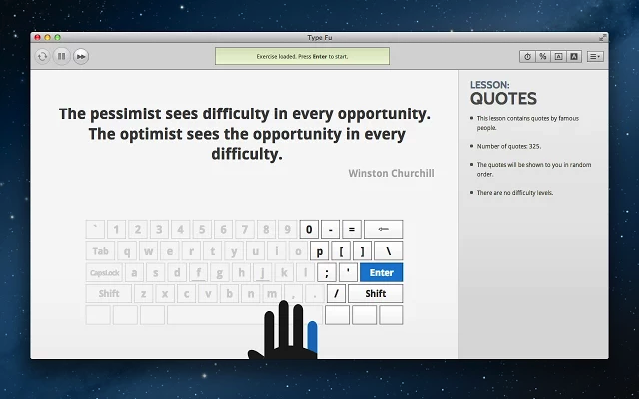
"The app is suitable for all age groups and skill levels. You can be a beginner, intermediate or advanced typist. Even if you took typing classes before, but it never sank in, Type Fu will help you refresh your skills and take them to the next stage instantly."
We have already shared several posts in the past featuring a plethora of web tools and apps to help kids learn fast typing. However, today we are sharing with you our top picks. These are the most downloaded extensions in Chrome store that have generated a huge number of positive user-reviews. Teachers and parents can use them with their kids to assist them in mastering the art of touch typing.
1-Typing Club
This is by far the most popular of them all. Typing Club is a free game and educational program to help you learn fast typing.”Using this program, your typing speed will reach 10 to 12 words per minute rather quickly. From there practice on your normal typing activities to increase your speed to 40 - 90 Word per minute.”
2- Typing Test KeyHero
“Key Hero is a great place to improve your typing skills. The game keeps track of all your performances (WPM and accuracy) and helps you understand what type of mistake you make.”
3- Type Scout
“Type Scout is a typewriter training app to improve your typing skills in a gamelike manner.Choose from 4 highly customizable games to train and improve your typing skills.”
4- TypeFu
"The app is suitable for all age groups and skill levels. You can be a beginner, intermediate or advanced typist. Even if you took typing classes before, but it never sank in, Type Fu will help you refresh your skills and take them to the next stage instantly."
A Quick Way for Students to Hand in Their Google Drive Assignments and Papers
March 22, 2015
There are several ways students can use to turn in their assignments through Google Drive. The most popular of them all is through a shared folder. As a teacher you can create a shared folder on your Drive and invite students to join and submit their papers. You can learn more about Google Drive shared folders from this link.
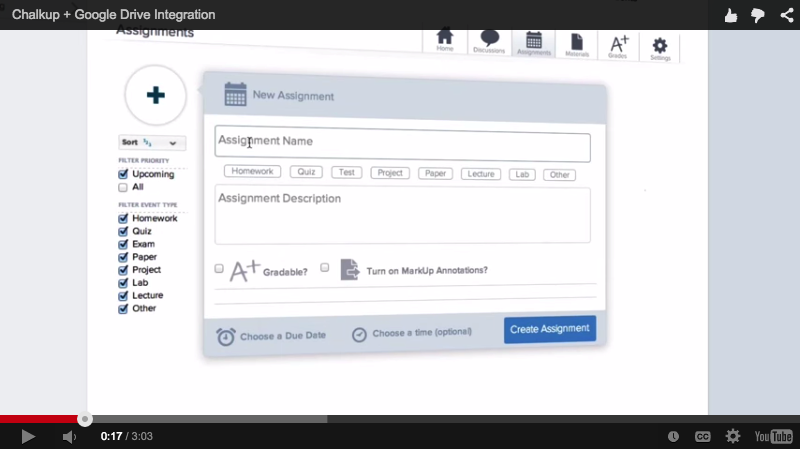
However, if you are looking for a simpler and quicker way to enable students to turn in their assignments, Chalkup has the answer. For those of you not familiar with this tool, Chalkup is a powerful application integrated with Google Drive and which allows teachers and students to do a variety of things with their Drive including, annotating docs, sharing Drive files, grading papers, and many more. Chalkup also offers this handy feature that allows students to instantly turn in their assignments and papers they crated on Google Drive.To do so, they simply need to sign in to their Chalkup, and under "turn in your assignment" they click on "Upload from Google Drive" as is shown in the image below:
Watch this video to learn more about how Chalkup works.

There are several ways students can use to turn in their assignments through Google Drive. The most popular of them all is through a shared folder. As a teacher you can create a shared folder on your Drive and invite students to join and submit their papers. You can learn more about Google Drive shared folders from this link.
However, if you are looking for a simpler and quicker way to enable students to turn in their assignments, Chalkup has the answer. For those of you not familiar with this tool, Chalkup is a powerful application integrated with Google Drive and which allows teachers and students to do a variety of things with their Drive including, annotating docs, sharing Drive files, grading papers, and many more. Chalkup also offers this handy feature that allows students to instantly turn in their assignments and papers they crated on Google Drive.To do so, they simply need to sign in to their Chalkup, and under "turn in your assignment" they click on "Upload from Google Drive" as is shown in the image below:
Watch this video to learn more about how Chalkup works.

Suscribirse a:
Entradas (Atom)