x
Mostrando entradas con la etiqueta Gmail tips and tools. Mostrar todas las entradas

martes, 23 de junio de 2015

Undo Send- An Excellent Gmail Feature for Teachers

June, 2015
‘Undo Send’ is one of the excellent features we previously featured in Top Gmail Features for Teachers. Undo Send allows you to cancel a sent email immediately after it has been sent. What’s new today is that Google has finally made this feature available as a formal setting in Gmail on the web.

Undo Send was first released in 2009 and since then it remained in Gmail Labs which is Gmail’s experimental lab that tests features to be added to Gmail official setting. Initially, Undo Send came with only 5 seconds interval time from the time you hit the send button till you decide whether you want to delay it or not. With this new update, Gmail now lets you choose between 5, 10, 20, or 30 seconds for cancellation period.

To activate this feature, head over to Gmail, click on  setting and scroll down till you find ‘Undo Send’ then tick ‘enable undo send’ and select your cancellation period.


Courtesy of Mashable

 Follow us on : Twitter, Facebook , Google plus, Pinterest .

lunes, 25 de mayo de 2015

5 Useful Gmail Tips for Teachers

May 25, 2015
Here are some helpful tips we pulled out from our Gmail Tips archive to share with you today. These tips are meant to help you enhance your productivity and make the best of your gmail experiences. Let us know what you think of them.


1- Add a signature to your emails
If you want to give a professional look to your emails, you probably need to add a snippet of text at the end of your email stating who you are, your blog or website, your social media profiles…etc.

Click on " settings" then on "general" and scroll down to "signature" and add your text


 2- Undo sent messages
If you have hit the "send" button too soon or by mistake then the "undo Send" feature allows you to stop messages from being sent for a few seconds after hitting the send button. You can set a cancellation period from 5 to 30 seconds.
Here is how to activate "Undo Send". Click on settings, then on Labs and tick the "enable" box in front of "Undo Send"


To set a time limit for your cancellation message. Click on settings again and then on " general" then select the the timing you want as is shown in the screenshot below.


3- Mark Emails 

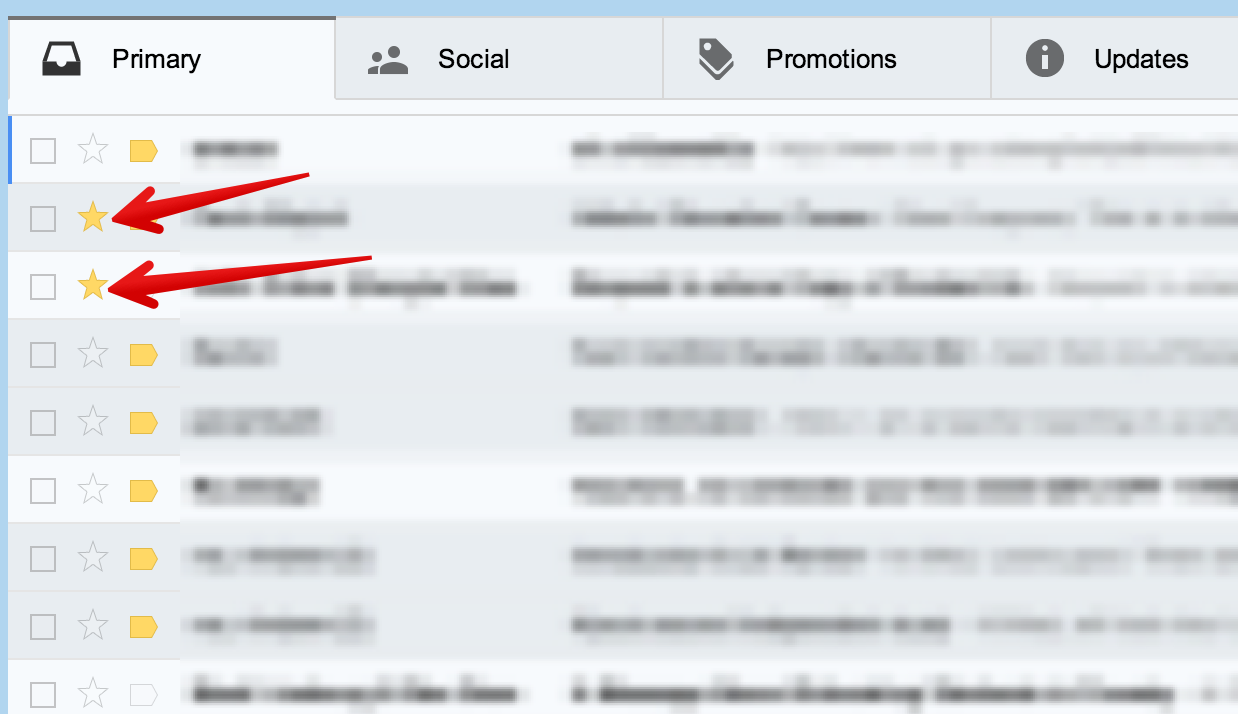
Use stars to easily mark certain messages as important or to indicate that you need to reply to them later. Stars appear to the left of the sender’s name in your inbox and only you can see if you’ve starred a message.
To star a message just click on   star icon next to the sender's name.


4-  Attachments in emails
When you receive an email with attachments, you’ll see thumbnails of the attachments at the bottom of your message. Click the attachment thumbnail to instantly view the attachment or see more options like print and share. Move your mouse over the attachment thumbnail and use the buttons to quickly Download or  Save to Drive (depending on the type of attachment).


Check out Gmail Help Centre for more tips and resources.

Follow us on : Twitter, Facebook , Google plus, Pinterest .

lunes, 27 de abril de 2015

Great Tips on How to Effectively Search Gmail and Google Drive

April 28, 2015
In this wonderful video Google engineers Liu and Merrified share some interesting tips and insights on how to effectively search your Gmail and  Drive.The purpose is to enable you to tap into some hidden gems that will allow you to search for what you need in Gmail or Drive quickly and accurately.

All of the search tips Liu and Merrified talked about in this tutorial include search and Boolean operators. This document from Gmail Help features some of the most useful operators to use when conducting internal searches in your Gmail. You should definitely bookmark and keep it for reference.


Some of the tips we particularly like include:

1- has:attachment
This allows you to search for emails with an attachment example: Example: from:david has:attachment
Meaning: Messages from David that have an attachment.

2- After:/ Before:/ older:/ newer:
You can use these words to filter your search to include only messages that were sent or received during a particular period of time.
 Example: after:2004/04/16 before:2004/04/18
Meaning: Messages sent between April 16, 2004 and April 18, 2004.*

3- Use of Boolean operator OR
“ For example, to look for messages from username@gmail.com and messages that contain the subject line 'Meeting reminder', you can enter 'username@gmail.com OR meeting reminder' in your Gmail search box.”

Watch the video below to learn more about how to effectively search your Gmail and Drive. Enjoy


 Follow us on : Twitter, Facebook , Google plus, Pinterest .

jueves, 26 de marzo de 2015

Make The Best of Your Gmail with These Excellent Apps

March 27, 2015
The tools we have curated today are particularly useful for Gmail users. The purpose is to empower you with some interesting apps that would enable you to  tap into the full potential of Gmail. These tools will help you enhance your mailing experience and boost your productivity. Some of the things you can do with these apps include: a quick way to compose a Gmail message embedding the URL of any webpage you want to share with others, easily manage multiple email accounts, create, edit and manage tasks in Gmail, track your emails to know when they have been read, schedule emails to be sent later, access your Gmail offline and many more.

1- Send from Gmail

This extension will open a Compose window in Gmail when you click any email address on a webpage. It also provides a button that will create a Gmail message when clicked, using the page title as the subject and selected page text and link address as the message.

2- Checker Plus for Gmail


Get desktop notifications, read, listen or delete emails without opening Gmail or Inbox by Gmail & easily manage multiple accounts.

3- Todoist for Gmail

The new Gmail plugin keeps you organized, focused, and more productive. Todoist is there wherever you need it—on Google Chrome, your mobile device, desktop, browser, Gmail, and more.

4- MailTrack for Gmail


Straightforward email tracker that tells you when the emails you send have been read. Without any cost or sending limit for Gmail.

5- Right Inbox for Gmail


Right Inbox integrates seamlessly with Gmail and lets you schedule your emails to be delivered at a future time. You may set reminders to the conversations and create recurring emails.

6- Gmail Offline


Gmail Offline beta is a Gmail app built to support offline access, allowing mail to be read, responded to, searched and archived without network access. After first start-up, Gmail Offline will automatically synchronize messages and queued actions anytime Chrome is running and an Internet connection is available.

viernes, 20 de febrero de 2015

15 Gmail Tips Every Teacher Should Know About

February 20, 2015
Over the past few months Gmail has witnessed the addition of a lot of interesting features and functionalities that enhanced its overall performance. Gmail also provides several hidden gems to users who are willing to dig a bit deeper and take their email experience to the next level. To help you make the best of Gmail, we have gone through Gmail help documentation and handpicked these wonderful tips for you. These are simple hacks that you can use on your Gmail to increase your productivity and be a Gmail savvy teacher.

1- Organize your emails into categories
Since the release of Gmail New Inbox, users can now classify their messages into different categories. Gmail does this automatically. It creates inbox tabs  (e.g.Promotions, Social, Updates) and places incoming emails into them. However, you can use tab setting to customize these categories, show or hide them, move messages between tabs and many more. Check out this page to learn more about this feature.

2- Search in Gmail
Gmail provides a powerful search functionality that you can use to search through the piles of your emails for specific emails you want. Watch the video below to learn about this feature.


3- Keep Track of Conversations
Gmail automatically groups messages into different conversations. Each conversation thread contains the original messages and all its replies stacked neatly under it. This makes it easy for users to understand context of a message, find related messages, and follow the conversation. However, if you would rather read each email as a separate  message, you can turn off the the Conversation View feature :
  • Open Gmail
  • Click on the gear in the top right
  • Select Settings.
  • Scroll down to the Conversation View section (stay in the "General" tab).
  • Choose Conversation view on or Conversation view off.
  • Click Save changes at the bottom of the page.

4- Tidy up Your Inbox with Archive
You can use the “Archive” feature to make your inbox look clean and nice. Archiving a message does not remove it forever, it only moves it out of your inbox and places it in your account. To retrieve or access your archived messages, click on “All mail” on the left or search for it using gmail search box.  Here is how to archive a message:
  • Open gmail
  • Open the message or select the checkbox next to it
  • Click the archive button as shown in this screenshot
  • Check out this page to learn more about Archive feature.

5- Stop Spam Messages
Gmail is known for its anti-spam capabilities and it usually aggregates spam messages automatically into a tab called “Spam”. However, if it happens that a spam message fooled Gmail spam filer and made it to your inbox, you can report it to Gmail and it will block similar messages in the future. To report a spam email, check the box next to the message and click on the spam icon as shown below. check out this page to learn more about Gmail spam functionality.


6- View and Save Attachments
When you receive an email with an attachment, you will automatically see the preview of the attachment at the bottom of the email. Click the attachment preview to instantly view the attachment or see more options like print and share. Move your mouse over the attachment preview and use the buttons to download or save to Drive. Check this page to learn more about this feature.

7- Format Text of Your Emails
To change the colour or font of the text of your email or make words bold or to emphasize key points, click on the Formatting options icon and customize your text the way you want. Check this page to learn more about this feature.


8- Insert Photos, PDFs, Docs,Links and Emoticons in your Emails
With one click you can easily attach docs, photos, files, PDFs either from your computer or from your Google drive. You can also add links and emoticons as is shown below.


9- Multitask with Notifications
This is not a good feature to use all the time as it can decrease from your productivity and can sometimes be annoying. I would rather use it only if I am waiting for an important email and don’t want to keep checking my inbox. Turning on Gmail notification will allow you to receive mail notifications on your your desktop in the form of a pop-up message. Check out this page to learn how to activate it.

10- Check your Spelling
If you are using a browser other than Chrome, you may want to use Gmail spelling check feature to spell-check your emails before you send them.To check your spelling, click the down arrow in the bottom corner of the compose box and select Check spelling.

11- Set Auto-replies
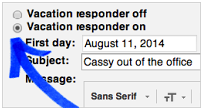
If you are planning to be away from your computer for sometime and you want to let people know that you won’t be able to get back to them right away, use Gmail vacation responder. Here is how to activate it:
  • Click on the gear icon on the top right corner
  • Click on settings
  • Scroll down and check the Vacation Responder.

12- Undo Sent messages
This feature allows you to undo your sent message .Enable the Undo Send feature, and decide how long you’d like Gmail to hold your mail before actually sending it off. Click the gear Gear icon and go to the Labs tab to enable the feature, and give yourself a little extra time for last-minute fixes.

13- Get things done with Tasks
Keep track of everything you need to get done with a to-do list right in your inbox. Head to the drop-down menu next to Gmail on the top left to get to your Tasks. Once you see the little window pop up near the bottom, you can start listing out your to-dos. You can even cross off items as you get things done by checking the checkboxes, and clear your list to start fresh. Check out the Tasks page to learn more about this feature. Here are some Gmail task shortcuts:

14- Mute conversations that go on too long
Have you ever been part of an email conversation that isn’t relevant to you and yet replies keep showing up in your inbox? The next time that happens, just mute the conversation by clicking the More button above your message and selecting Mute.New messages in the conversation will skip your inbox and go to All Mail.