x
Mostrando entradas con la etiqueta Google Drive Tools. Mostrar todas las entradas

domingo, 21 de junio de 2015

DocHub- A Powerful Google Drive Tool for Signing and Annotating PDFs and Docs

June 21, 2015
DocHub is anther excellent Google Drive tool for filling, editing, and signing PDFs. Compared with similar tools out there in Chrome web store, DocHub is way easier and simpler to handle. You can use it for a variety of purposes including: signing PDFs, highlighting text, inserting images, commenting and adding pages to PDFs and many more.


DocHub's signing features are really cool. You can easily sign and save any document. You can even import signature from phone and send documents to others to sign. DocHub is compatible with  all PDFs, Open Office and Microsoft Office Documents:  (PDF, DOC, PPT, XLS, TXT, DOCX, PPTX and many more…).


As for the sharing options, DocHub allows you to email your documents or share them via social networking websites. You can choose whether you want your docs to be public or private. It also supports collaboration and lets you  collaborate with others on a doc.

 Follow us on : Twitter, Facebook , Google plus, Pinterest .

miércoles, 17 de junio de 2015

A Simple Google Drive Tool for Converting Videos to Different Formats

June 17, 2015
Video Converter is a good web tool and Chrome app that allows you to convert a wide range of media format to  MP4, AVI, MPEG, FLV, 3GP. For teachers, this simple tool does serve the purpose, for those of you looking to convert video files bigger than 1023MB, Video Converter is definitely not an option.


Video Convert is integrated with Google Drive so you can easily upload and convert videos you have saved on your Drive. It is also integrated with other services namely Dropbox and SkyDrive. The process of converting a video is very simple: upload your video file from your computer or other integrated services. You can also use the URL of a video but this last option did not work for us with YouTube videos. After uploading your video, choose the format you want it converted to then click on convert. Depending on your Internet connection, the conversion process can sometimes take a bit longer than expected. Give it  try and see if you like it.

lunes, 15 de junio de 2015

The 7 Popular Google Docs Tools for Teachers

June 15, 2015
Below is a list of some popular Google Docs add-ons for teachers and educators. These extensions are geared towards enhancing your Google Docs productivity by enabling you to perform a wide range of functionalities that Docs alone would not be able to afford.  Some of the things you can do with these add-ons include: create bibliographies and automatically format citations in different citation styles, integrate various accents into your docs, create and insert mind maps into your documents, add digital signatures to your docs, create math graphs, generate tag clouds, and draw diagrams.


1- EasyBib Bibliography Creator


'EasyBib allows you to easily create a bibliography for your research paper. Automatically cite books, journal articles, and websites just by entering in the titles or URLs. Format citations in MLA, APA, Chicago, Harvard, and over 7K other styles.'

2- Easy Accent


'This Add-on allows users to easily insert accents for different languages directly from a sidebar in their Google Doc.When you click on an accent it will insert the accent,move the cursor in front, then allow you to continue typing without re-clicking.'

3- MindMeister


'The MindMeister add-on for Google Docs turns any bullet-point list into a mind map, and automatically inserts it into your document. The first point of your list becomes the root topic of the mind map, while the rest of the first-level points are turned into first-level topics. Second-level points are turned into the equivalent second-level topics and so on.'

4- HelloSign

'HelloSign makes it easy to sign your Google Doc with a legally binding, business-caliber signature.Need to get your document signed? HelloSign makes requesting a signature from others easy too!'

5- Tag Cloud Generator


'Tag Cloud Generator creates a tag cloud in the side bar from any Google Docs document that contains 50 words or more. Use this add-on to quickly assess what your emerging theme is, how to best categorize your document, or if it is someone's else's document - find out the theme of the document without reading it. '

6- Lucidchart Diagrams


'Lucidchart is an HTML5-based visual collaboration tool that makes drawing diagrams fast and easy.  Work together with an unlimited number of others to create and edit diagrams in real time, with changes merged and synced instantaneously -- great for team collaboration and working with clients. '

7- g(Math)


'Create graphs and complex math directly from the sidebar in your Google Doc. You can now use Speech to Math in Chrome to talk directly to g(Math) to create the expressions or use Handwriting recognition for expression entry!'

 Follow us on : Twitter, Facebook , Google plus, Pinterest .

viernes, 5 de junio de 2015

A Handy Google Drive Tool for Annotating PDFs

June 5, 2015
Notable PDF is a useful tool to use for viewing and annotating your PDFs.  Notable PDF works with Google Drive and is also accessible offline. You can use it to view PDF files on your browser. You can easily highlight text, add comments, underline or strikethrough text and instantly share your PDF files with your colleagues and collaborators.


Notable PDF also enables you to insert your own digital e-signature to your PDF files. It also supports freehand drawing and several other features. The free version of this app works great but has very limited features. However, Notable PDF does offer special prices for schools and education which start at $2/ user per year.

Watch this short video to learn more about Notable PDF.


 Follow us on : Twitter, Facebook , Google plus, Pinterest .

domingo, 31 de mayo de 2015

3 Handy Google Drive Tools for Math Teachers

May 31, 2015
Today while we were browsing Google Docs Add-ons we selected these three tools specifically for math teachers and students. The apps will enable you to solve mathematical equations, create graphs, work on complex calculations, perform basic math/stat operations of cell values in a Google Docs table and many more.

1- g(Math)

“With the graph creator, you can type in functions and inequalities and it will create the graph associated with the functions and inequalities. You can also plot points in the same graph, find the line of best fit of those points, and specify a viewing window. As a new feature, you can select a table in a Doc and import the data into g(Math) to create a plot!”

2- Table Calculator


“This add­-on helps users perform basic math/stats operations of cell values in a Google Docs table and insert the result with the click of a button. Operations include addition, multiplication, average, count, max, min and standard deviation. This free productivity tool will help you save time by performing calculations within Google Docs without using a separate calculator or using a spreadsheet.”

3- Wizkids Cas


”Wizkids CAS is a Computer Algebra System that works with Google Docs' built-in equations.With Wizkids CAS users can:cSolve equations and plot graphs, Find numerical and exact solutions, Simplify and factorise expressions with variables, Drag and drop results and graphs from the sidebar in Google Docs.”

 Follow us on : Twitter, Facebook , Google plus, Pinterest .

miércoles, 20 de mayo de 2015

A Handy Google Drive App to View and Edit Office Files

May 20, 2015
Office Editing for Docs, Sheets and Slides is a Chrome app that allows you to view and edit Microsoft Word, Excel, and PowerPoint files right on your Google Drive. You do not need the Office suite installed on your computer to work on your Word or Excel files, this app does the job.


To start using this app, you will have to install it from the Chrome app store. Note that this extension is already installed by default on Chrome OS. Once installed, any Office file you want to work on will be opened in one of Google Drive’s services: Docs, Sheets, and Slides. The added advantage of working on these files on Drive is that you get to benefit from Drive's collaborative features such as commenting, chat, and co-editing.


Although the app description states that the extension supports six formats: .doc, .docx, .xlsx, .xls, .ppt, .pptx , but we found that .doc and .xls are the files that work the best with this app. Also note that “Office files cannot be edited in the classic version of Drive. The new Google Drive is gradually rolling out to all users via the Settings menu.” Give it a try and see if you like it.

sábado, 16 de mayo de 2015

A Good Google Drive App for Creating Photo Collages

May 16, 2015
Here is an excellent Chrome app for creating  photo collages. Loupe Collage is a web based tool that is integrated with Google Drive and enables users to easily create  beautiful photo collages. Loupe Collage supports a wide variety of shapes. You can turn your photos into hearts, animals, words, logos and many more. You can even draw your own shapes and add them to your collages.


Besides being able to upload photos directly from your local drive, Loupe Collage has recently released a new update which enables users to use photos they have on other websites such as Google Plus, Google Drive, Flickr, Google Image search,  Twitter...etc. Collages created by Loupe can be saved to your computer drive or shared with others through Google Drive.

Here is a round-up of the features provided by Loupe Collage:
  • Upload photos or get photos from Facebook, Instagram, Flickr, Google+, Google Drive, Google Image Search, Twitter, Tumblr, or any other website
  • Create collages in the shape of a rectangle, heart, star, butterfly, world, and more
  • Use the text shape to spell out your name in photos
  • Unique photo collage every time
  • The photos are intelligently placed to make the collage look amazing
  • Move the photos around manually to make it perfect
  • Share the collage with your friends on Facebook, Twitter, Email, or embed it on your website or blog
  •  Download the collage to your computer, device, or Google Drive

martes, 12 de mayo de 2015

A Handy Google Drive App for Converting Audio Files

May 13, 2015
Audio Converter is a good Chrome app to use on your Google Drive to convert audio files from one format to another. No software download is required, the app is web-based and works right in your browser. Audio Converter works best with files that are saved in your computer or Google Drive. Covering online audio files is a little bit slower but in general the app does a very good job and way better than several other audio conversion apps out there.


Audio Converter supports a wide range of formats including : mp3,  wav, ogg, m4a, m4r, flac. Other features provided by this app include: multiple files support, extracting sound from a video, advanced conversion settings, tag support, and many more. We invite you to give Audio Converter a try and share with us what you think of it. We hope you will find it useful.

 Follow us on : Twitter, Facebook , Google plus, Pinterest .

martes, 28 de abril de 2015

An Excellent Google Drive Tool for Creating Interactive Presentations

April 28, 2015
Pear Deck is a nice app that allows you to plan and build interactive presentation decks directly from your Google Drive. One distinctive feature of Pear Deck is that it includes some amazing formative assessment tools that allows you to engage the entire class with a series of questions on the content of the presentation.


When you present through Pear Deck you are actually creating a live session that students can join from their own devices. As a teacher, you have full control of the flow of the presentation and using your tablet you can even easily move in the class while  going through the slides in your projector screen.Pear Deck has a variety of unique interactive features (e.g. draggable, drawing, text or number, multiple choice…etc) that enable students to actively participate in your presentation and respond to your questions. Students responses can be shared in realtime and  anonymously on classroom projector or interactive whiteboard.

Watch the video below to learn more about Pear Deck


domingo, 26 de abril de 2015

Two Simple Ways to Create A Table of Content in Google Docs

April, 2015
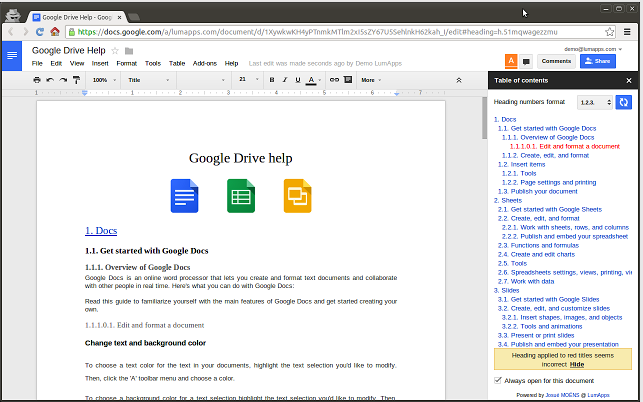
There are actually two ways to add a table of contents to a document in Google Docs. Both of these ways require that you create headings and subheadings in your document. The first way is through using Google Docs' built-in feature which can be accessed by clicking on "insert" button then select "table of contents". Watch this excellent tutorial from Shannon Hermandez to learn more about how to create a table of content using Google Docs built-in functionality.


The second way is through using a third party add-on called 'Table of Contents'. This  is a powerful Google Docs add-on that allows you to easily create a table of content in the sidebar. The great thing about this feature besides providing readers with a quick overview of the main points covered in your document is that it makes it easier for them to instantly jump to any section in the document by simply clicking on any of the headings  listed in the table of contents.


More importantly, the table of contents is automatically created out of the headings in your document. And when you add another heading you simply hit the refresh button and it will be automatically added to the table of contents. However, be forewarned that in some cases where you have several headings or your document is really very long, the functionality of table of contents can be very slow.

sábado, 11 de abril de 2015

4 Google Drive Tools Teachers Should Have

April 12, 2015
In today's post we are sharing with you four important Chrome apps to enhance your  productivity on Google Drive. We have already reviewed each of these apps in separate posts in the past and we thought it would be practical to aggregate them in a single page for anyone to instantly access and use. Some of the things you will be able to do with these apps include: the ability to save web content and screenshots right into your Drive, a quicker way to access and create all types of files on Drive, view and edit Microsoft files on Drive, and the ability to sync and manage all your files in the cloud directly from your Google Drive page.

1- Save to Google Drive

"This extension allow you to save web content directly to Google Drive through a browser action or context menu. You can save documents, images, and HTML5 audio and video all by right clicking and selecting 'Save to Google Drive'. You can save the currently viewed page using the 'Save to Google Drive' browser action."

2- Google Drive Quick Create


"A simple extension to make it quicker to create new Google documents, spreadsheets, presentations and drawings. Supports multiple Google accounts through the Options."

3- Office Editing for Docs, Sheets and Slides


"View and edit Microsoft Word, Excel, and PowerPoint files -- without needing Office installed on your computer. "

4- Sync Google Drive with Dropbox, Box,…


"With this browser extension you can sync, backup and integrate anything in your Dropbox, SharePoint™, Google Gmail™, Evernote, Box, OneDrive™, Egnyte™, or Basecamp account with Google Drive™. And setup can be done directly from your Google Drive™ interface."

jueves, 9 de abril de 2015

3 Google Drive Tools for Creating Professional-looking Diagrams and Flowcharts

April 9, 2015
We received a couple of requests from teachers asking for Google Drive add-ons to use with Google Docs to create and integrate diagrams and flowcharts. The first tool that came to mind is Gliffy for we have reviewed it here a couple of times but then we did a further search in Google Drive app store and picked two more to add to this list. For those of you looking for apps to create concept and mind maps in Google Drive, this selection is a good place to start with.

1-Gliffy

Gliffy is a very good diagram editor that is integrated with Google Drive allowing users to easily and instantly create and share beautiful diagrams and flowcharts. Gliffy provides a wide variety of features that include:
  • Easy-to-use diagram editor helps you communicate your ideas quickly
  • Makes any idea look more professional and polished
  • Extensive shape library with hundreds of industry-standard shapes and connectors
  • Snap-to-grid, drawing guides, shape alignment and distribution tools
  • Also great for drawing a basic diagram, flow chart, UI mockup, site map, network map, business process model, org chart, floor plan, venn diagram, SWOT analysis, and other technical diagrams.
2- Draw.io


Draw.io is another powerful diagramming add-on to use on Google Docs. Its editor has all kinds of shapes and materials to help you create both simple and advanced diagrams. Draw.io is completely free and does not require any registration.

3- Web Sequence Diagrams


“Sequence Diagrams let you describe how different parts your system communicate with each other. But drawing sequence diagrams can take hours with traditional tools. Your clients and colleagues will be impressed if you can make large-scale changes as easily as copying and pasting text, instead of spending your time moving lines around with a mouse. With this add-on, you write your sequence interactions directly into your documentation. With a click of the button, they are converted into professionally formatted UML sequence diagrams in a variety of styles.”