x

jueves, 22 de enero de 2015

Educational Web Tools You Might Not Have Heard of

January 23, 2015
When designed well, technology can making life easier. Too bad most technology has the opposite effect. Here are a few notable tools that educators say have helped them in some way. Perhaps you will find one useful too.


Like a Wikipedia of annotations, any student or educator can publicly annotate classic literature or academic journals.

Wdgts
A collection of utilities you can use without unlocking your iOS device, such as a calculator, calendar, currency converter, etc.
Transfer files easily between backup services like Dropbox, Google Drive, Box, or even FTP and WebDav.
Audio recordings stored here are automatically tagged and transcribed, making them easy to search later.

Want more? Check out these collections .

Utilities 
This one is curated by ICT coordinator Tessa de Wit.
This one is curated by head of computer science Mike Washburn.

By Mike co-founder of edshelf

 Follow us on : Twitter, Facebook , Google plus, Pinterest .

The Best Teacher Tools for Taking Screenshots and Annotating Pictures

January 22, 2015
Creating tutorials and explanatory guides is best done through the help of screenshots. These are pictures we take of our screens to share with others or include in a visual demonstration of how, for example, a process works. As teachers and educators we often find ourselves in need of such visual annotations and cues to enhance our students comprehensibility. There are several web tools that we can use to create screenshots and we have already reviewed some of them in past publications here. Today, we are introducing you to what we consider to be the best 4 web tools for creating screenshots. Besides being free, these tools are very simple to use and are also student friendly. They will allow you to  capture your screen, crop and annotate your pictures using  arrows, colours, shapes, text and many more.

1- MonoSnop

Monosnop is a wonderful tool  that you can use to :
  • Capture full screen, just part of the screen, or a selected window
  • Highlight important details with pen, text, arrows and shapes
  • Hide private information with our blur tool
  • Open snapshots in your favorite external editor
  • Drop images on the Monosnap icon to upload them to the cloud
  • Upload your snapshot to our storage in one click
  • Or save it to your local folder and copy it to clipboard
2-Snagit


Snagit is a Chrome extension that you can use to capture screenshots within your browser.The app allows you to annotate and customize your screenshots the way you want. Snagit is also integrated with Google Drive so you can save your screenshots directly to your Drive.

3- Awesome Screenshot


Awesome Screenshot allows you to capture visible parts of the screen, focus on a specific part of it, or capture the whole page. You can then crop your screenshot and annotate it using rectangles, circles, arrows,lines and text.

4- Lightshot


This is another great web tool for taking screenshots. Lightshot  works right from your browser. Some of the features it offers to its users include: cropping any part of the page, editing and annotating screenshots using arrows, boxes, circles, and text, saving your screenshots on your hard drive or uploading them to the cloud

Google Released 3 Powerful Updates to Mobile Google Drive

January 22, 2015
After the recent updates to Google Classroom , Google released today a new set of interesting updates to its iOS and Android apps for Docs, Sheets, and Slides.  Here is a brief overview of what these new features will enable you to do on these apps:

1- Editing 
Some new editing functionalities have been added to the three apps. Users now can do real-time spell checking in documents, hide rows and columns in spreadsheets, and group shapes in presentations.

Mobile Drive updates


2- New safety feature
 Besides the two-step verification measure Google offers to its users, from today on “Google Docs supports Touch ID on iOS, so you can unlock Docs, Sheets and Slides with your unique fingerprint.”

3- New update for the visually disabled
For those suffering for a visual impairment of some sort, Google updated its apps  TalkBack   ( for Android) and VoiceOver  (for iOS) to enable users to “ create, edit, and share files in Docs, Sheets and Slides. The updated apps also respond well to screen magnification, in case you need to zoom in for a closer look.’

Follow us on : Twitter, Facebook , Google plus, Pinterest .

miércoles, 21 de enero de 2015

Personalized Learning Vs Traditional Learning

January 22, 2015
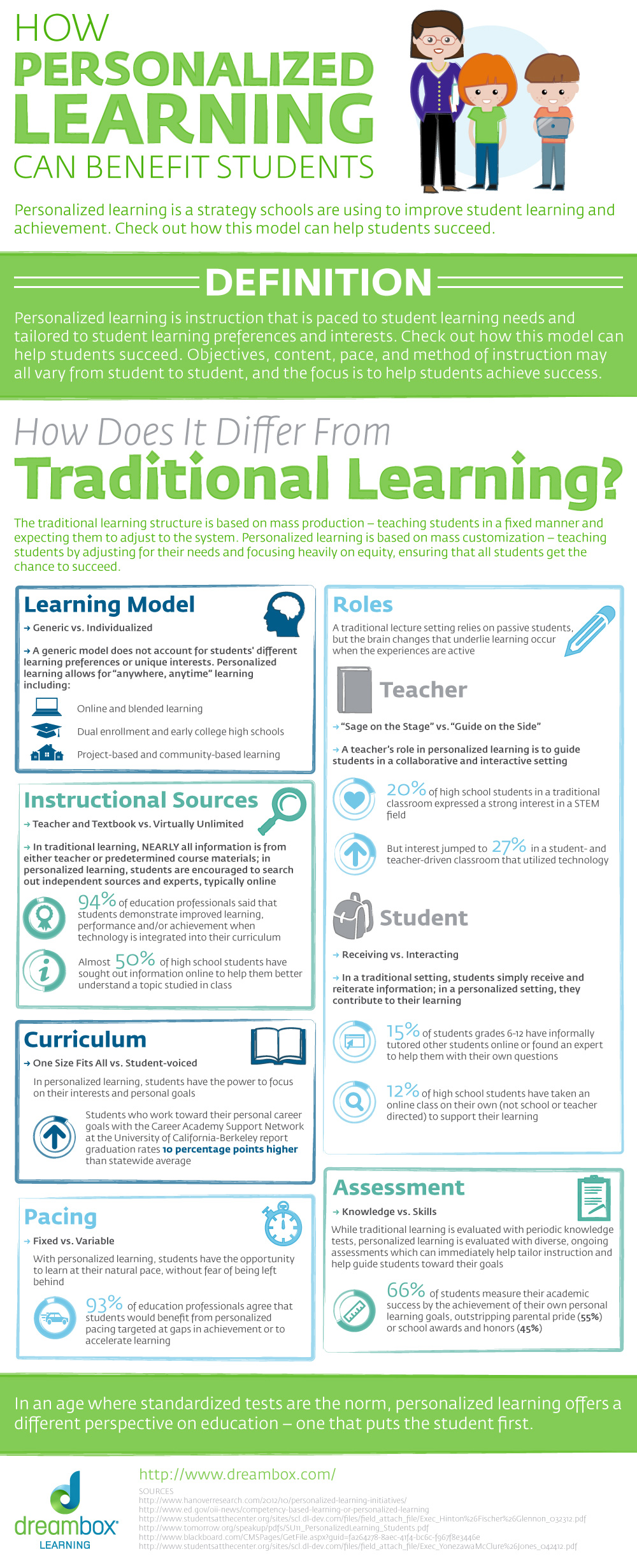
One of the biggest affordances of technology is towards the enhancement of the concept of personalized learning. Internet and more particularly web 2.0 technologies and mobile apps have provided learners with unprecedented opportunities to learn whenever, wherever, and however they want. At its core, personalized learning is all about tailoring the available resources in order to meet personal learning needs. On a macro educational scale, personalized learning addresses different teaching strategies and instructional methods that focus on the adjustment and leverage of the curricula and teaching materials to help meet a diverse set of students learning needs and interests.

The visual I am sharing with you today sheds more light on this concept and walks you through some of the differences between personalized learning and traditional learning. Check it out below and share with us what you think of it.


personalized learning vs traditional learning  Source: Dreambox

Excellent Speech to Text Tool Integrated with Google Drive

January 22, 2015
Voice Recognition (former Dictation) is one of the most popular speech recognition apps in the Chrome store. The app, which works right from your Chrome browser, makes use of Google’s integrated API speech’ software to transcribe your voice into textual words. You can use it to type long documents, emails and essays without touching the keyboard.’


 The great thing about Voice Recognition is that it is integrated with the popular cloud storage tools: Google Drive and Dropbox. This means you can easily save and export your transcribed text to your accounts on these platforms. You can also use email to share your text with others. Also, Voice Recognition ’uses Chrome's Local Storage to save the transcriptions and thus you'll never lose your work. There's no need for the Save button.’

Watch the video below to learn more about how to use Voice Recognition


New Google App to Control Your Computer Using Your iPad

January 21, 2015
A few days ago Google released a free iPad app that allows you to control your computer using your iOS devices ( iPad or iPhone). But to use this app you will need to install the popular “Remote Desktop” extension on your Chrome.


Chrome Remote desktop extension is an add-on that we have reviewed here in several instances. It basically allows users to remotely access another computer through Chrome browser or a Chromebook.  Computers can be made available on a short-term basis for scenarios such as ad hoc remote support, or on a more long-term basis for remote access to your applications and files. All connections are fully secured.

Courtesy of The next Web

Follow us on : Twitter, Facebook , Google plus, Pinterest .

Everything Teachers Need to Know about Dropbox

January 21, 2015
Besides Google Drive, Dropbox is by far one of the most powerful cloud storage platforms out there. Dropbox offers new users up to 2GB of free storage space to start with and you can always upgrade for extra space. Two of the best Dropbox features  for teachers and educators are: The ability to upload documents and PDFs and generate a shareable link to share with others who can access them without even having a Dropbox account. Also, most of the blogging services and website do not offer free hosting space that would enable you to upload documents, Dropbox is the ideal solution to this ( Google Sites is another alternative). The second important feature is the "shared folder". Similar to Google Drive's shared folder service, Dropbox allows you to create a folder, upload files and documents to it and share it with others who, upon granting them editorial privileges, can edit and upload stuff to it.

Given the huge educational potential of Dropbox, I deemed important to compile a list of some excellent video tutorials to share with teachers who are keen on integrating this tool in their instruction. These videos contain some insightful tips to help you better use Dropbox. They also unravel some hidden gems that advanced Dropbox users will find handy.

The video tutorials below are created by Dotto Tech which is one of my favourite educational channels on YouTube. Steve's tutorials are entertaining, fun and very insightful.

1- Everything You Need to Know about Dropbox


2- Five Great Dropbox Features


3- Dropbox Sharing Tutorial


4- Dropbox Vs Google Drive


Photo source: digitalbounds.com